Admin User Guide · System Module

Who can see what.
Who can do what.
Down to the toggle.

System is the platform's control room — role-based access control down to 44 individual permissions, per-community app module visibility, and the platform-wide settings that govern email, security, notifications, and maps for every deployment.

🛡️ Role-Based Access Control 👥 Administrator Management 📱 Per-Community App Modules ⚙️ Platform Settings
44
Granular permissions
3
Default admin roles
5
Settings categories
2
Access scopes: Global / Community
Scroll to begin ↓
Overview

System at a glance

Two tools governing everything below them: who has access, and how the platform behaves.

System sits at the bottom of the sidebar for a reason — it's the foundation every other module runs on. Administration controls who can do what, and Settings controls how the platform itself behaves.
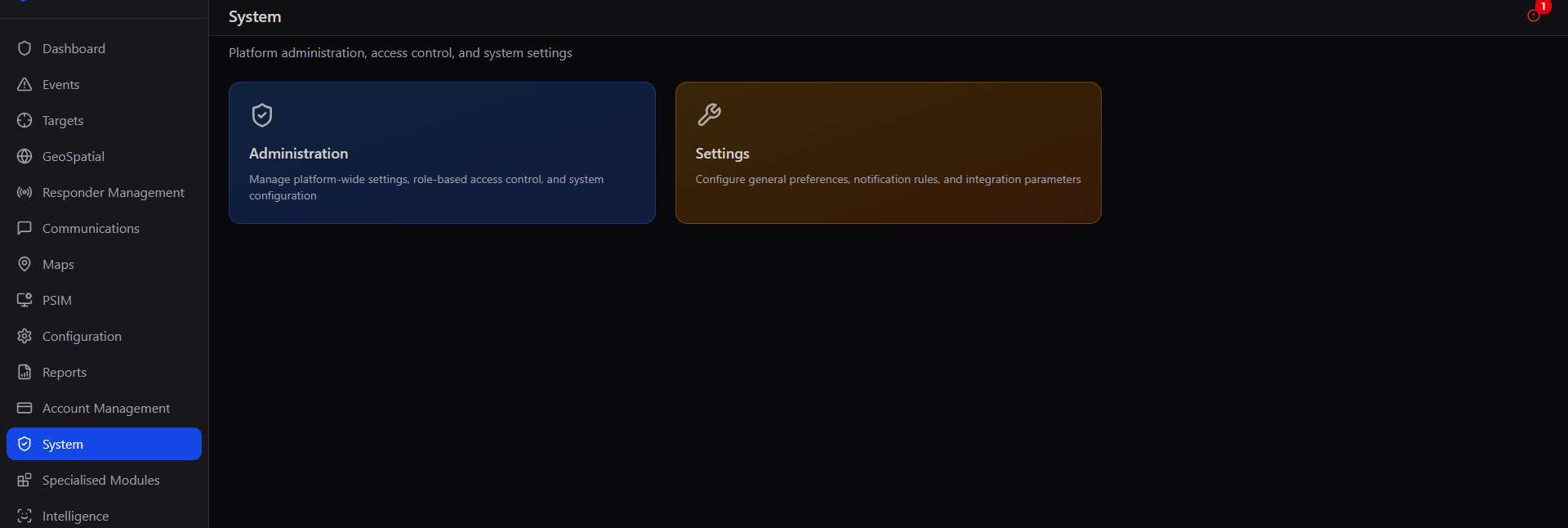
System landing page with two cards: Administration for managing platform-wide settings, role-based access control, and system configuration; and Settings for general preferences, notification rules, and integration parameters
System → Administration (roles, admins, app module visibility) and Settings (email, general, notifications, security, maps)
🛡️
Administration
Manage admin roles, permissions, community access, and which app modules are visible to citizens and responders per community.
🔧
Settings
Configure general preferences, email delivery, notification defaults, security policies, and default map providers across the platform.

Legacy-safe by design. Admin users without any role assigned retain full access automatically — role-based access control only restricts an admin once a role has actually been assigned to them, so existing admin accounts are never locked out by rollout.

Section 02

Admin Roles & RBAC

Three default roles, 44 granular permissions, and a clear split between Global and Community-Scoped access.

Administration opens on a live readout of your own access — role, scope, and permission count — before showing every Admin Role defined on the platform, each with its permission set visible at a glance.
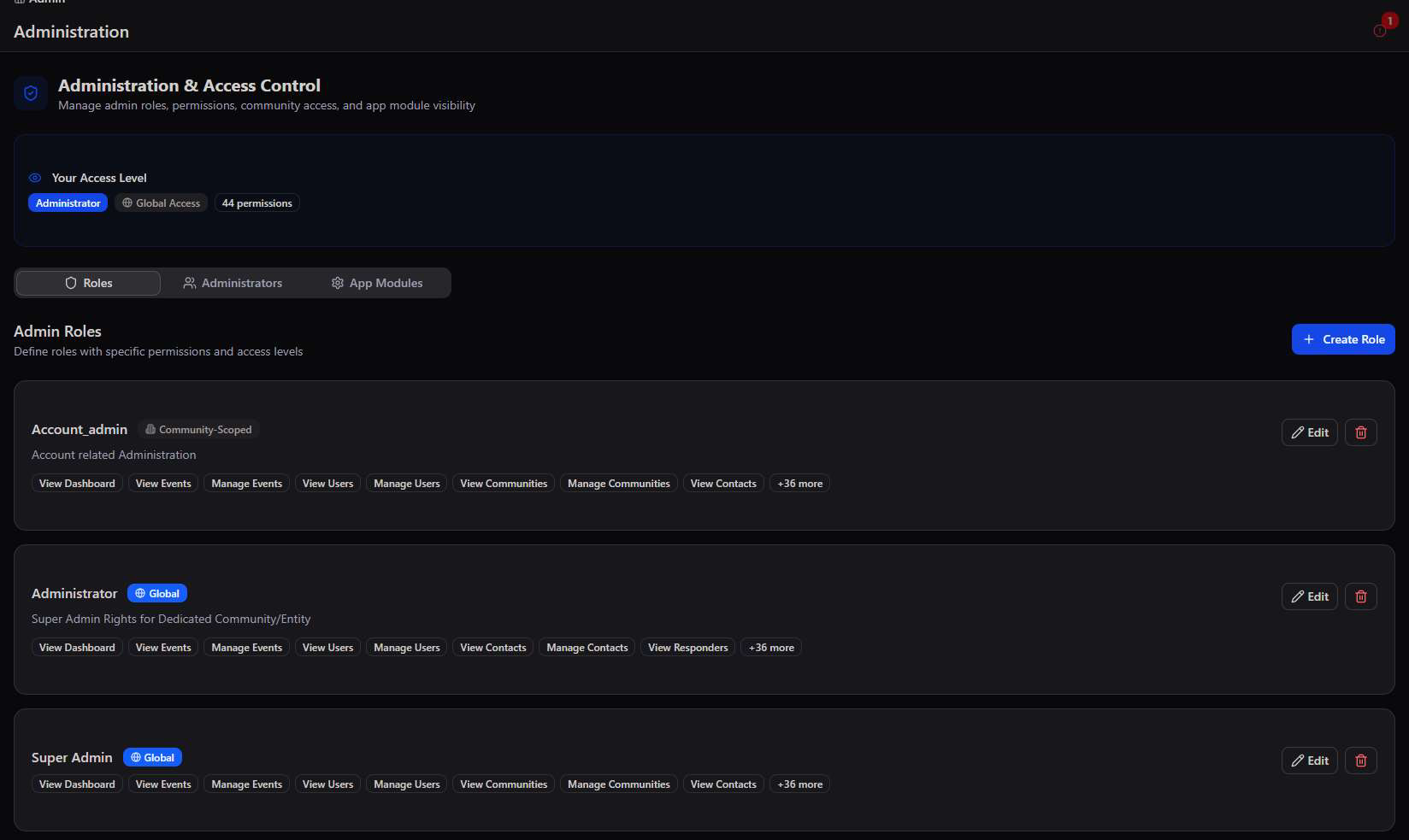
Administration and Access Control screen showing Your Access Level as Administrator with Global Access and 44 permissions, tabs for Roles, Administrators, and App Modules, and Admin Roles list showing Account_admin (Community-Scoped), Administrator (Global), and Super Admin (Global) with their permission tags
Admin Roles → Account_admin (Community-Scoped), Administrator (Global), and Super Admin (Global), each showing its permission set inline
Community-Scoped
Account_admin
Account-related administration, restricted to the specific communities assigned to that admin — cannot see or act on data outside their scope.
Global
Administrator
Super admin rights for a dedicated community or entity — broad operational access across the full permission set.
Global
Super Admin
The project owner role — always retains full, unrestricted access regardless of any role configuration changes made elsewhere.
View Dashboard View Events Manage Events View Users Manage Users View Communities Manage Communities View Contacts +36 more

Global vs. Community-Scoped is the key distinction. A Global role sees and manages data across the entire platform; a Community-Scoped role — like Account_admin — is locked to only the specific communities it's been granted, making it safe to hand out to third-party account managers or dealer partners.

Section 03

Creating a Custom Role

Beyond the three defaults, build a role around exactly the permissions a job needs — nothing more.

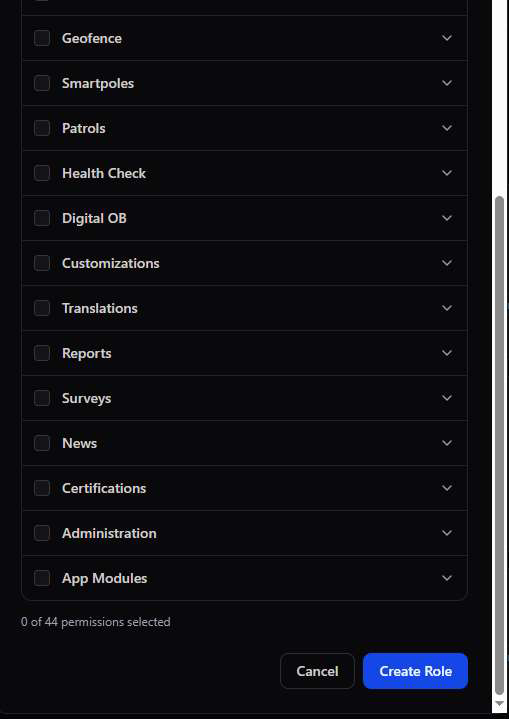
Create Role builds a bespoke access profile from the full 44-permission catalogue, organised into 17 functional categories from Dashboard through to App Modules — with Select All / Clear All for fast setup.
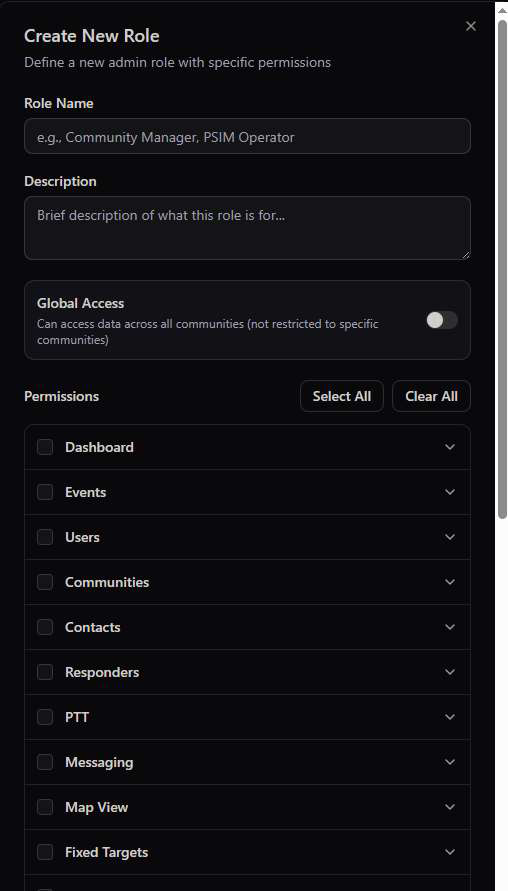
Create New Role modal with Role Name and Description fields, a Global Access toggle, Select All and Clear All buttons, and expandable permission categories including Dashboard, Events, Users, Communities, Contacts, Responders, PTT, Messaging, Map View, and Fixed Targets
Create New Role → name, description, Global Access toggle, and the first half of 17 expandable permission categories
Create New Role modal continued showing more permission categories: Geofence, Smartpoles, Patrols, Health Check, Digital OB, Customizations, Translations, Reports, Surveys, News, Certifications, Administration, and App Modules, with a counter reading 0 of 44 permissions selected
The remaining categories — Geofence, Smartpoles, Patrols, Health Check, Digital OB, Customizations, Translations, Reports, Surveys, News, Certifications, Administration, App Modules — with a live selected-count
  • Role Name & Description — e.g. "Community Manager" or "PSIM Operator", so the role's purpose is clear to whoever assigns it later.
  • Global Access toggle — off by default, meaning the role is Community-Scoped until explicitly widened.
  • 17 permission categories — each expandable to granular View / Manage rights for that specific area of the platform.
  • Live permission counter — "0 of 44 permissions selected" updates as boxes are checked, so scope is always visible before saving.

Design roles around real jobs, not job titles. A "PSIM Operator" role might only need View Dashboard, View Events, and PTT permissions — resist granting Manage Users or Administration rights unless that operator genuinely needs them.

Section 04

Administrators

Assign roles and community access to every admin user on the platform, and see their current standing at a glance.

The Administrators tab lists every admin user with their currently assigned role and scope — and flags anyone still running in legacy full-access mode with no role assigned.
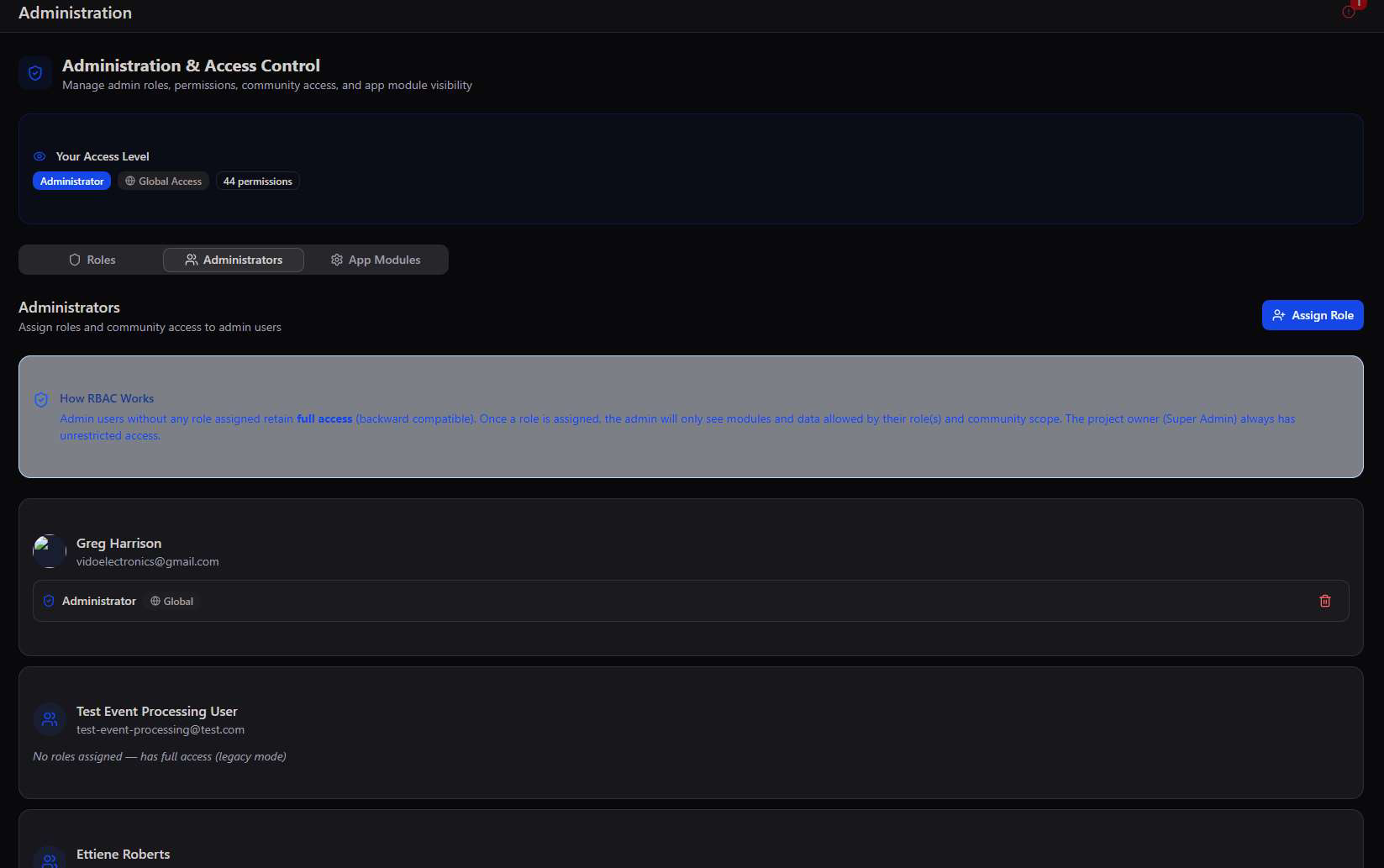
Administrators tab showing an explanation of how RBAC works, and a list of admin users including Greg Harrison with Administrator (Global) role, Test Event Processing User with no roles assigned (full access legacy mode), and Ettiene Roberts
Administrators → every admin user, their assigned role and scope, or a note that they're running in legacy full-access mode
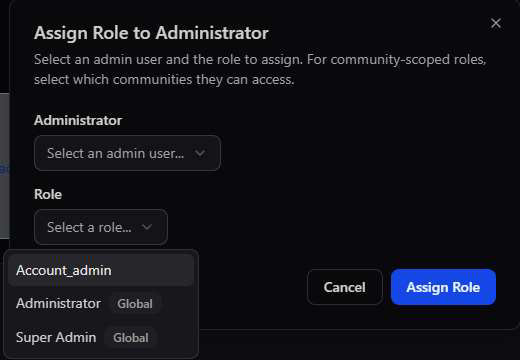
Assign Role to Administrator modal with a dropdown to select an admin user and a dropdown to select a role, showing Account_admin, Administrator (Global), and Super Admin (Global) as options
Assign Role → pick the admin user and the role; for Community-Scoped roles, also choose which communities they can access

How RBAC works, in plain terms: admin users without any role assigned retain full access (backward compatible). Once a role is assigned, that admin only sees the modules and data allowed by their role and community scope. The Super Admin always has unrestricted access.

Section 05

App Module Visibility

Control exactly which features appear in the Citizen App and Responder App — per individual community.

App Module Visibility is where a community's actual in-app experience is shaped: disabled modules disappear entirely from that community's app navigation, rather than just being greyed out.
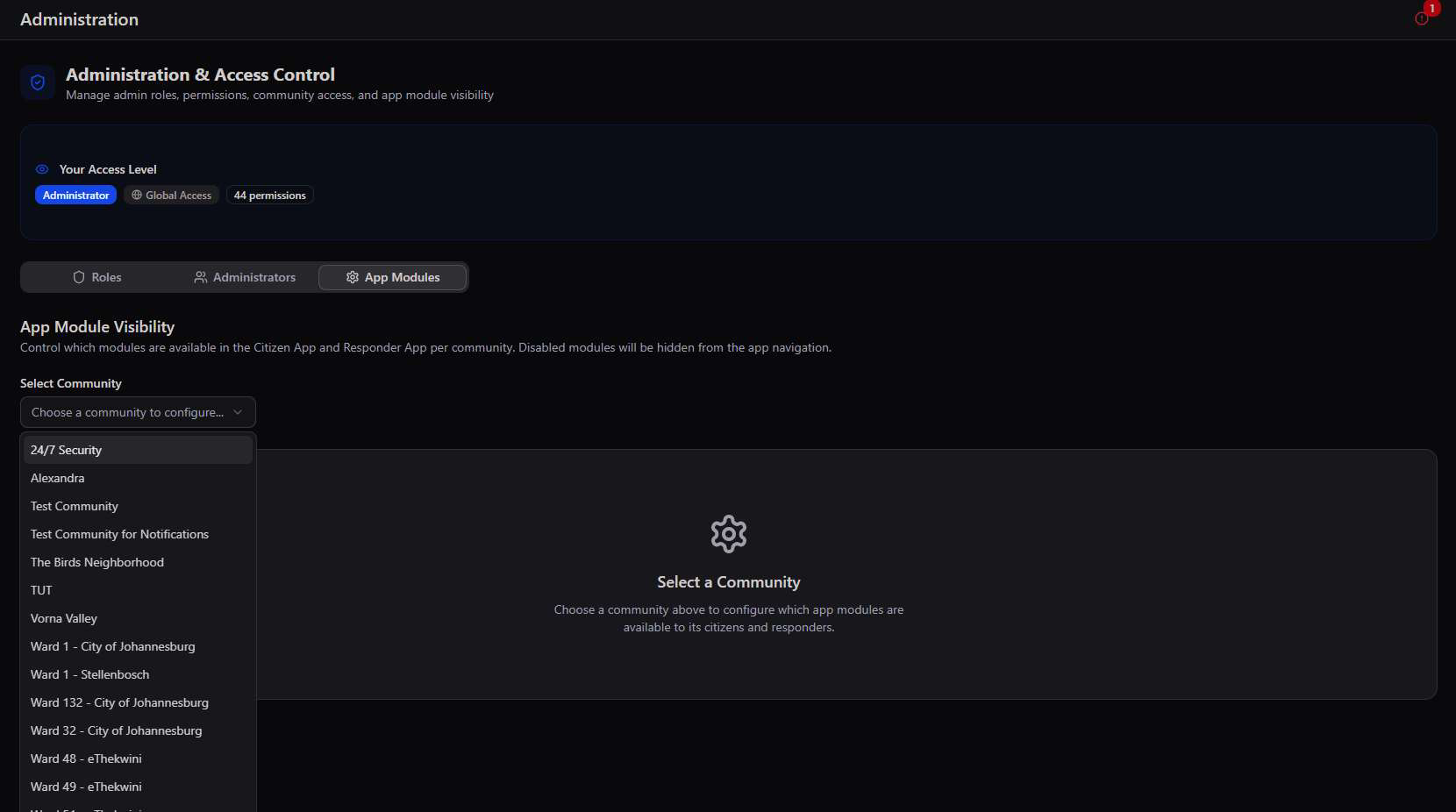
App Module Visibility screen with a Select Community dropdown open showing 24/7 Security, Alexandra, Test Community, and many wards, and a placeholder state prompting to choose a community to configure
App Module Visibility → select any community from the full platform list to configure its own module set

Once a community is selected, three panels appear — Citizen App Modules, Citizen Home Buttons, and Responder App Modules — each a simple toggle list, with safety-critical items like SOS/Panic locked permanently on.
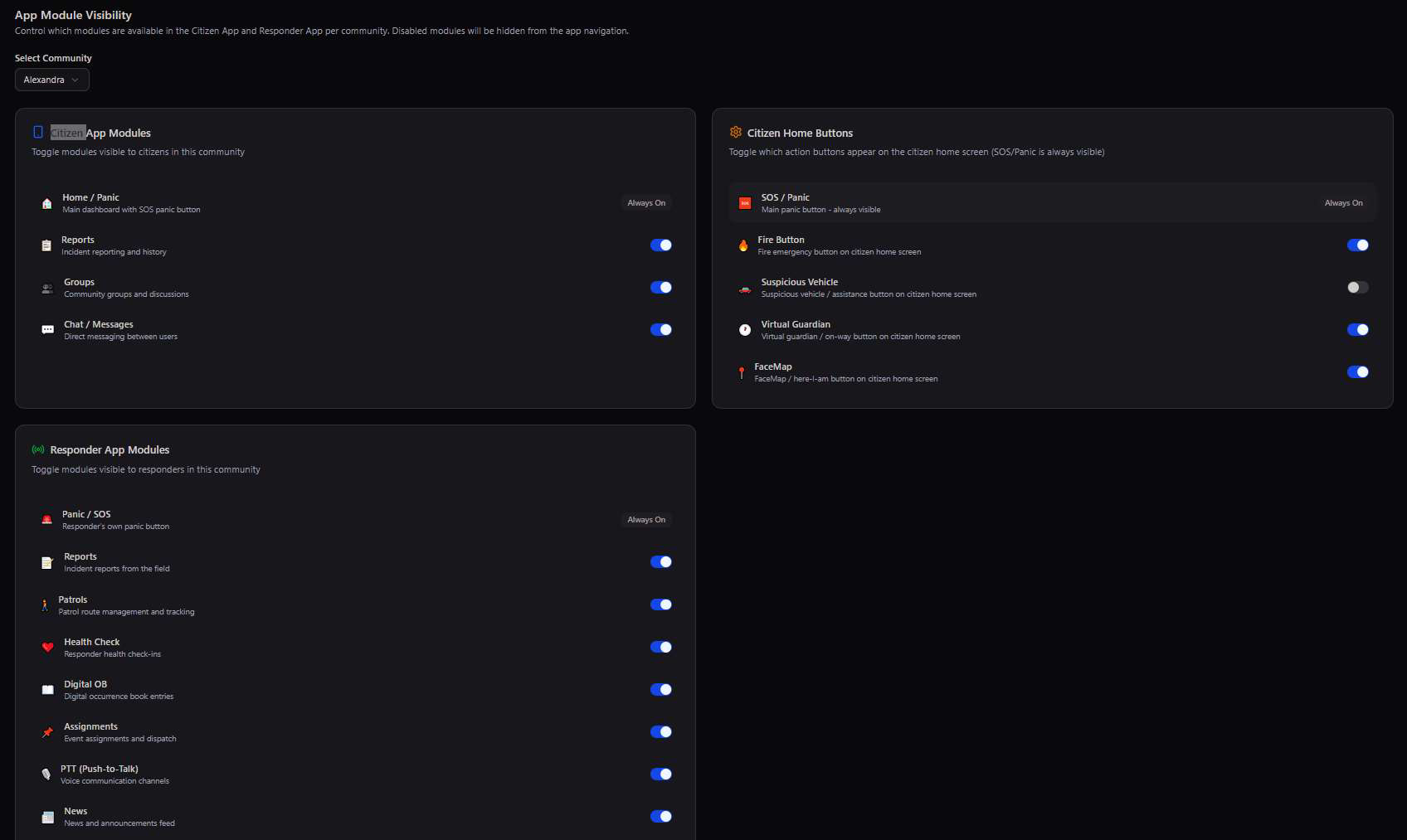
App Module Visibility for Alexandra community showing Citizen App Modules with Home/Panic always on, Reports, Groups, and Chat/Messages toggled on; Citizen Home Buttons with SOS/Panic always on, Fire Button on, Suspicious Vehicle off, Virtual Guardian on, FaceMap on; and Responder App Modules with Panic/SOS always on, Reports, Patrols, Health Check, Digital OB, Assignments, PTT, and News all toggled on
Alexandra's configuration → Citizen App Modules, Citizen Home Buttons (Suspicious Vehicle disabled here), and the full Responder App Modules list
  • Citizen App Modules — Reports, Groups, Chat/Messages; Home/Panic is always visible and cannot be disabled.
  • Citizen Home Buttons — Fire, Suspicious Vehicle, Virtual Guardian, FaceMap; SOS/Panic is always on.
  • Responder App Modules — Reports, Patrols, Health Check, Digital OB, Assignments, PTT, News; Panic/SOS is always on.

A cleaner app for a simpler community. A small residential estate that doesn't run patrols can disable Patrols, Health Check, and Digital OB for its Responder App entirely — decluttering the interface down to only what that community actually uses.

Section 06

Portal Settings

The platform's own configuration — email delivery, general preferences, notifications, security policy, and default map providers.

Portal Settings covers five categories of platform-wide configuration, each in its own tab, from the SMTP server that sends every report email to the map provider used across admin, citizen, and responder views.

Email (SMTP) General Notifications Security Maps

Email (SMTP)

Configure the outgoing mail server used for reports and notifications, with one-click Quick Setup for Gmail, Outlook, Yahoo, SendGrid, Mailgun, and Amazon SES, plus Test Connection and Send Test Email to verify before going live.
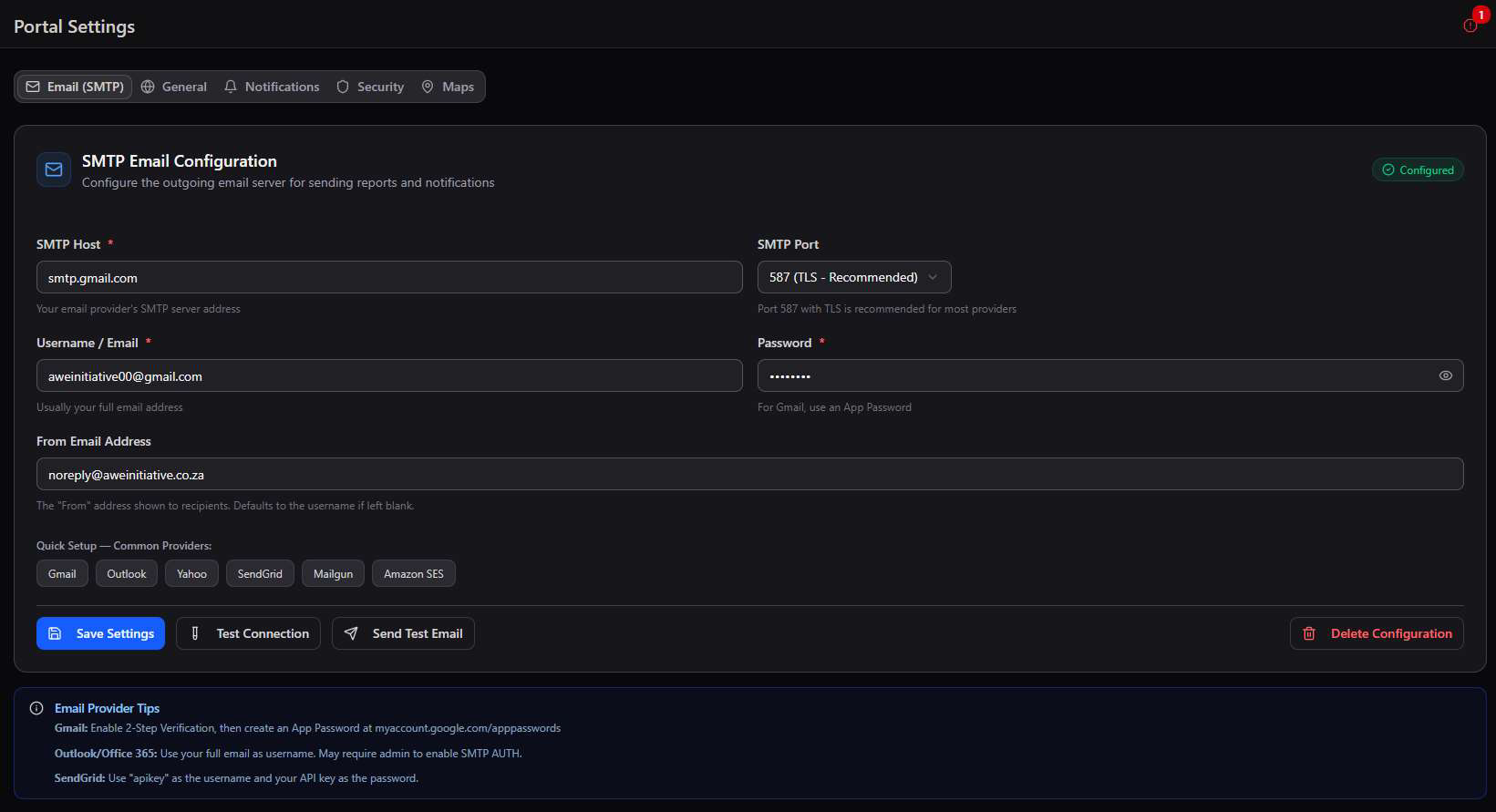
SMTP Email Configuration screen showing a Configured status badge, SMTP Host smtp.gmail.com, SMTP Port 587 TLS Recommended, Username/Email, Password, From Email Address, Quick Setup buttons for Gmail Outlook Yahoo SendGrid Mailgun Amazon SES, and Save Settings, Test Connection, Send Test Email, and Delete Configuration buttons
Email (SMTP) → host, port, credentials, From address, provider quick-setup, and connection testing tools

General & Notifications

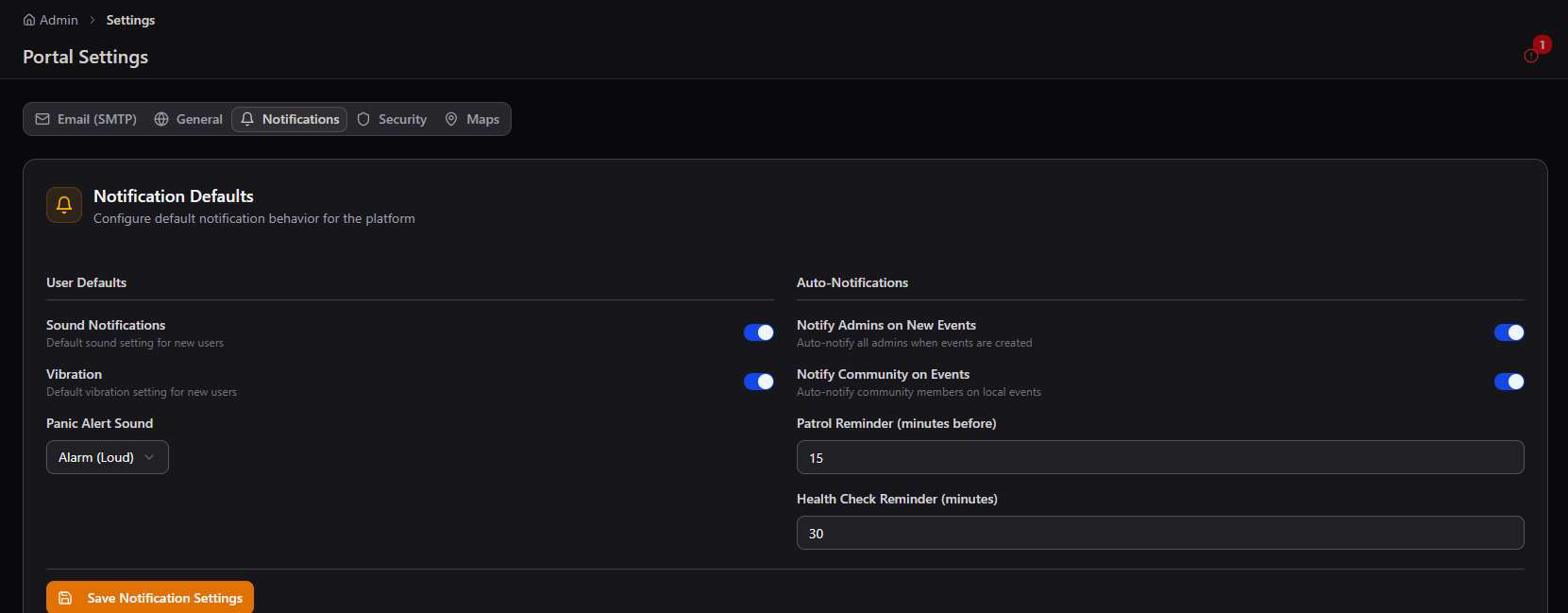
General Settings sets the platform's identity and session behaviour — Platform Name, Description, Timezone, Date Format, Default Language, Session Timeout, and Max Login Attempts. Notifications sets default sound/vibration behaviour for new users and auto-notification rules for admins and communities.
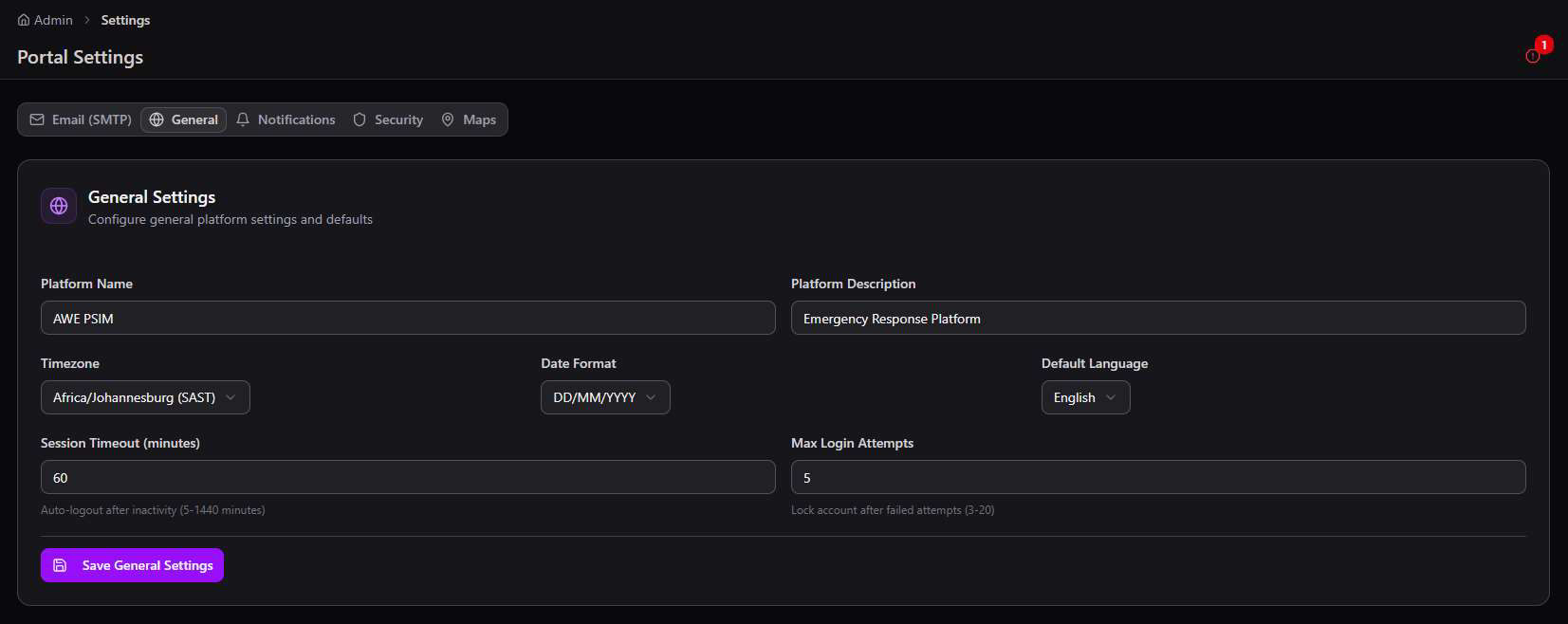
General Settings tab showing Platform Name AWE PSIM, Platform Description Emergency Response Platform, Timezone Africa/Johannesburg SAST, Date Format DD/MM/YYYY, Default Language English, Session Timeout 60 minutes, and Max Login Attempts 5
General → platform name, timezone, date format, language, session timeout, and login attempt limits
Notification Defaults tab showing User Defaults for Sound Notifications, Vibration, and Panic Alert Sound set to Alarm Loud, plus Auto-Notifications for Notify Admins on New Events, Notify Community on Events, Patrol Reminder 15 minutes, and Health Check Reminder 30 minutes
Notifications → default sound/vibration for new users, auto-notify rules, and patrol/health check reminder timing

Security & Maps

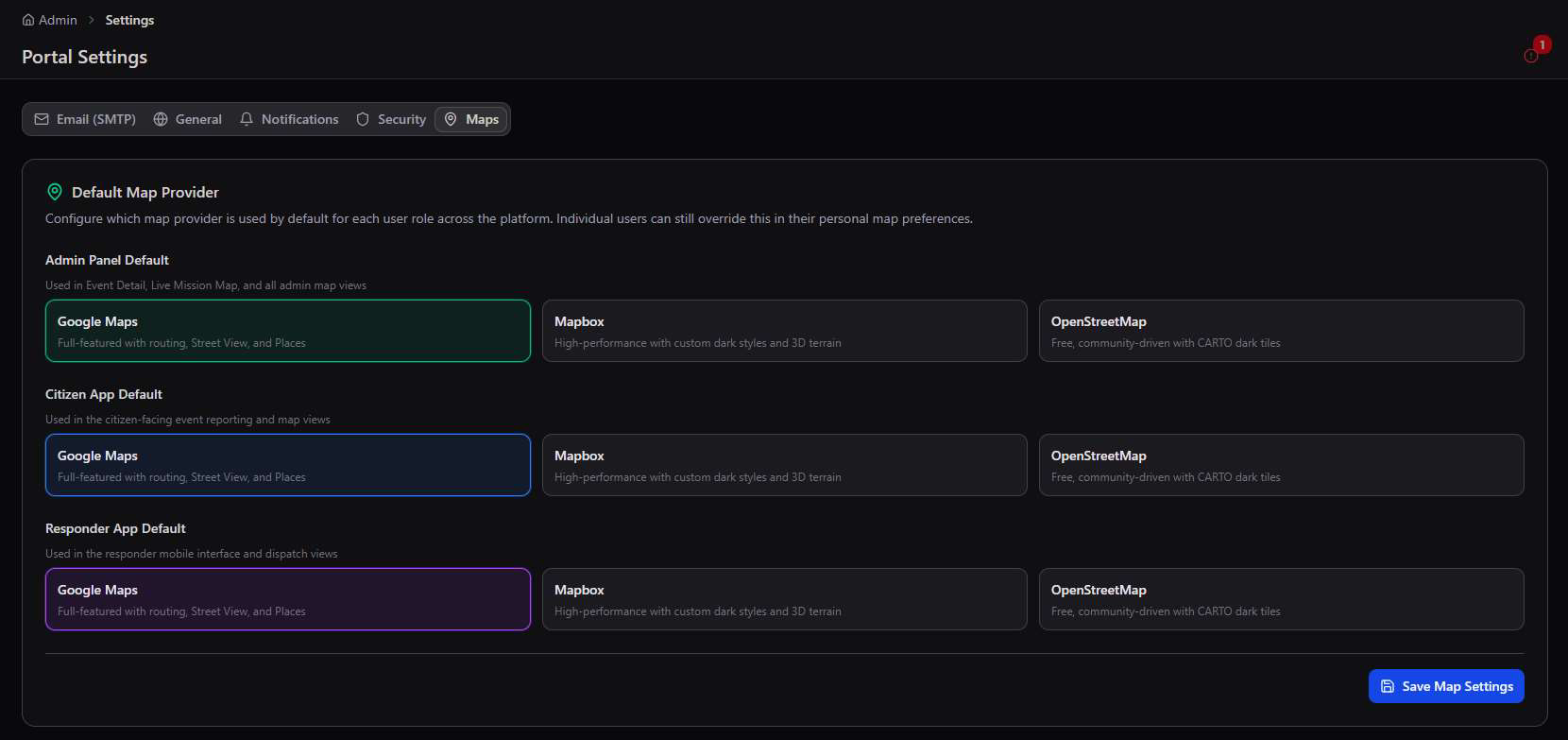
Security Settings governs authentication policy platform-wide — Two-Factor Auth, Email Verification, minimum password length, public registration, auto-approval, and API rate limiting. Maps sets the default map provider — Google Maps, Mapbox, or OpenStreetMap — independently for the Admin Panel, Citizen App, and Responder App.
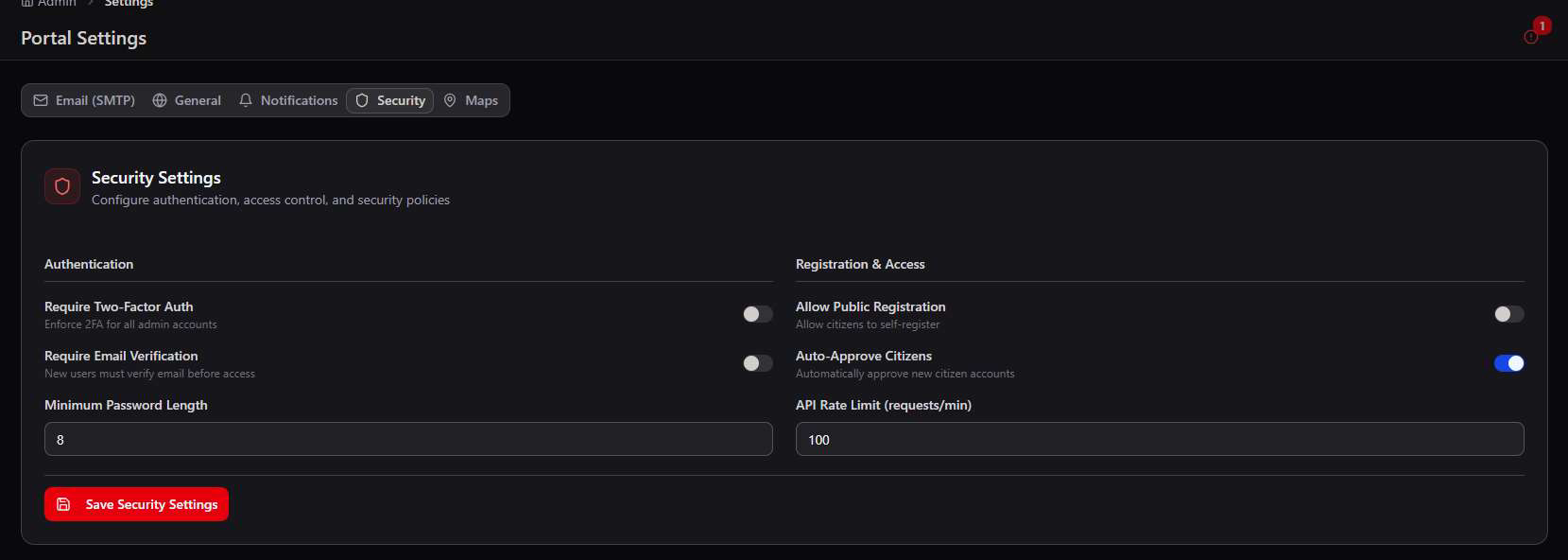
Security Settings tab showing Authentication toggles for Require Two-Factor Auth and Require Email Verification, Minimum Password Length 8, Registration and Access toggles for Allow Public Registration off and Auto-Approve Citizens on, and API Rate Limit 100 requests per minute
Security → 2FA, email verification, password length, public registration, auto-approval, and API rate limiting
Default Map Provider settings showing Admin Panel Default, Citizen App Default, and Responder App Default each set to Google Maps, with Mapbox and OpenStreetMap as alternative options for each
Maps → independent default map provider per surface (Admin Panel, Citizen App, Responder App) — Google Maps, Mapbox, or OpenStreetMap

Individual users can still override the default. Setting a platform-wide map provider here doesn't lock anyone in — individual users can still choose their own preferred map provider in their personal preferences.