Admin User Guide · Targets Module

Every user.
Every site.
Mapped and monitored.

The AWE Initiative Targets module is the platform's registry of everything you protect — the people you serve, the communities they belong to, and the fixed and mobile sites you monitor. It's where identity, geography, and access control all come together.

👤 Users & Roles 🏘️ Communities & Geofences 📍 Fixed Targets 🗺️ PSIM Site Maps 🚚 Mobile Targets 📣 Messaging Center
4
Core modules
3
User roles
3D
Site floor plans
Live
Device & audit tracking
Scroll to begin ↓
Overview

Targets at a glance

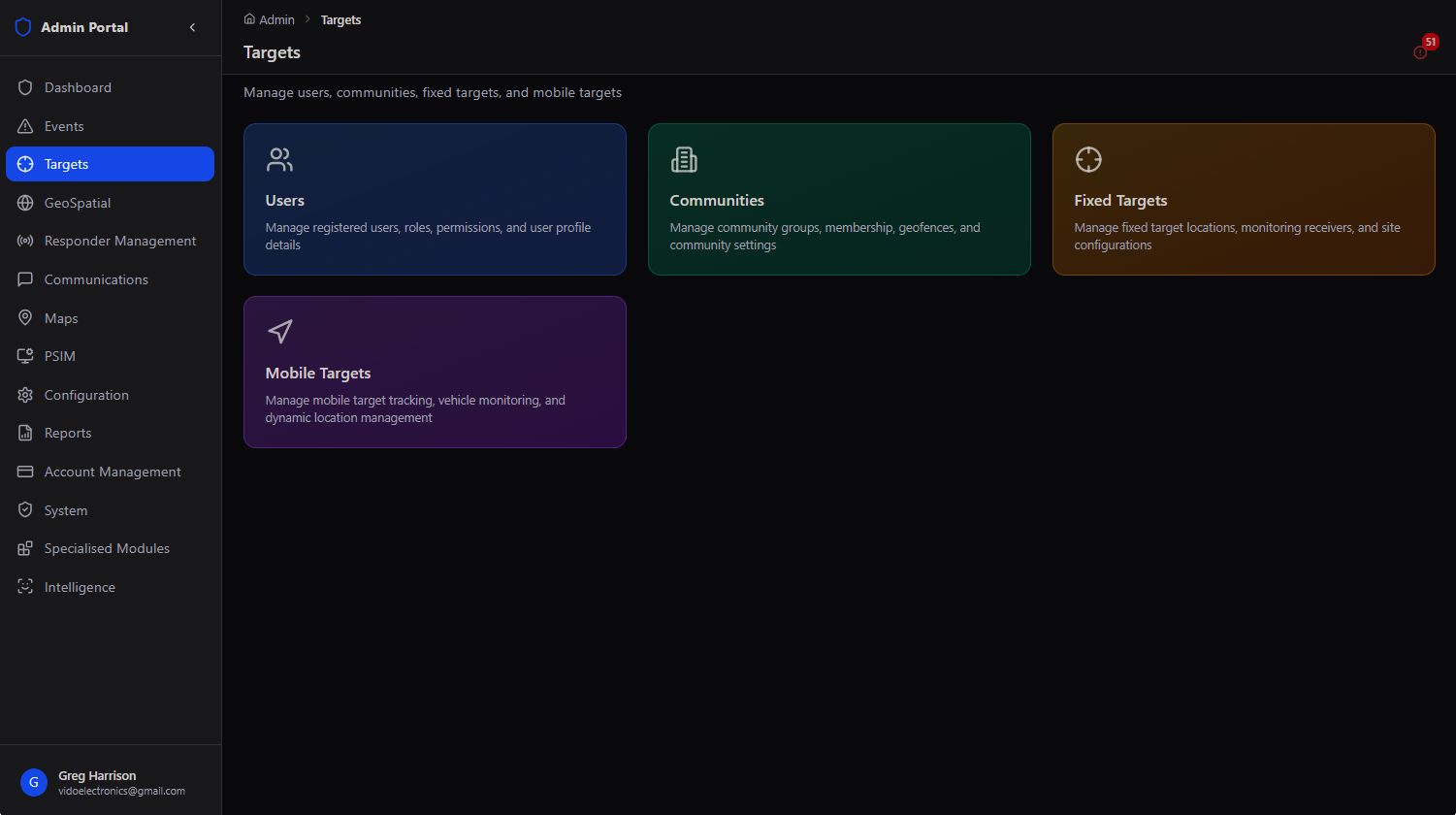
Four registries — Users, Communities, Fixed Targets, and Mobile Targets — that together define who and what the platform is protecting.
Targets module dashboard
Targets → the landing dashboard: Users, Communities, Fixed Targets, and Mobile Targets, each one click away

Where Responder Management answers "who is deployed," Targets answers the other half of the equation: who are we serving, and what are we watching over? Every registered user, every community they belong to, every fixed site under monitoring, and every mobile asset being tracked is managed from this single module.
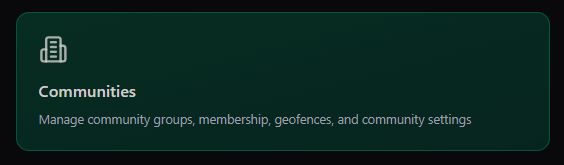
Communities module tile
Communities
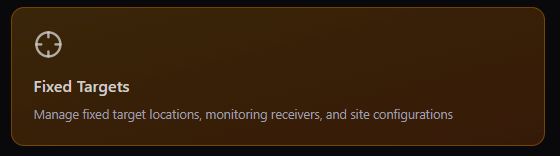
Fixed Targets module tile
Fixed Targets
PSIM Site Maps module tile
PSIM Site Maps
Mobile Targets module tile
Mobile Targets
👤
Users
Manage registered users, roles, permissions, and per-user profile details across the entire platform.
🏘️
Communities
Create and manage community areas with geofences — membership, population, and coverage status.
📍
Fixed Targets
Monitor and manage fixed target locations — businesses, homes, government buildings, and their site configurations.
🚚
Mobile Targets
Track mobile targets — vehicles and dynamic assets — with live location and monitoring.

The registry behind everything else. A responder can't be dispatched to an address that isn't registered, a community can't be patrolled if it has no geofence, and an alarm can't be traced to a contact if the site has no Fixed Target profile. Targets is the foundational data every other module builds on.

Module 01

Users & Access

Every registered platform user, their role, their community, and a full authentication audit trail.

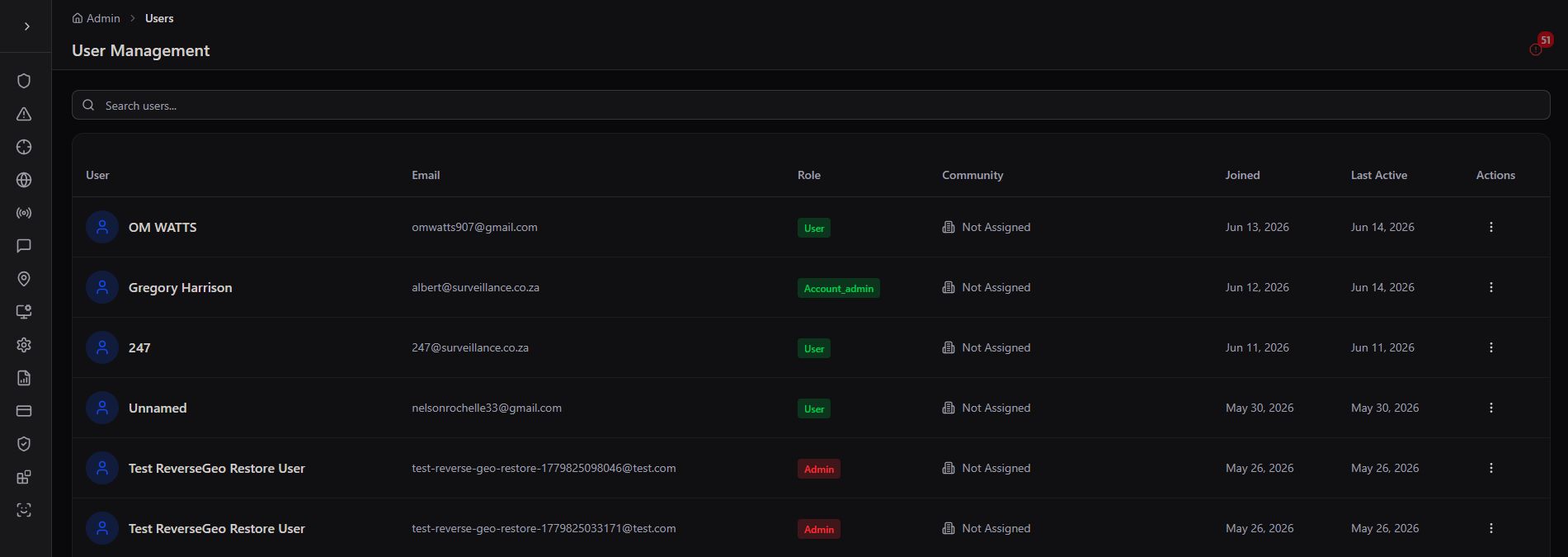
User Management is the master list of every person with an account on the platform — citizens, responders, and admins alike. From here you can search the full user base, see when each person registered and was last active, and change their role or community assignment without leaving the table.
User Management table
User Management → the full user roster, searchable by name or email, with role, community, and activity dates

Per-user actions

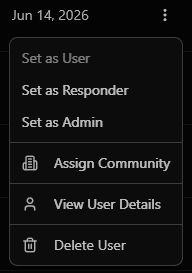
Clicking the actions menu on any user opens a quick-action list — reclassify their role, assign them to a community, review their full profile, or remove them from the platform.
User row action menu
Row actions → Set as User, Set as Responder, Set as Admin, Assign Community, View User Details, Delete User
🏷️
Three-tier roles
Every account is one of User (citizen), Responder, or Admin. Roles determine app experience and platform permissions, and can be changed at any time from the row menu.
🏘️
Community assignment
Link a user to the community they belong to — or leave them unassigned. Community membership drives which geofenced alerts and news posts reach them.
🕓
Registration & activity dates
See exactly when each user joined and when they were last active in the app — useful for identifying stale accounts or confirming onboarding.
🔍
Search by name or email
Find any user instantly across a platform with thousands of registered accounts.

OTP Authentication Audit Log

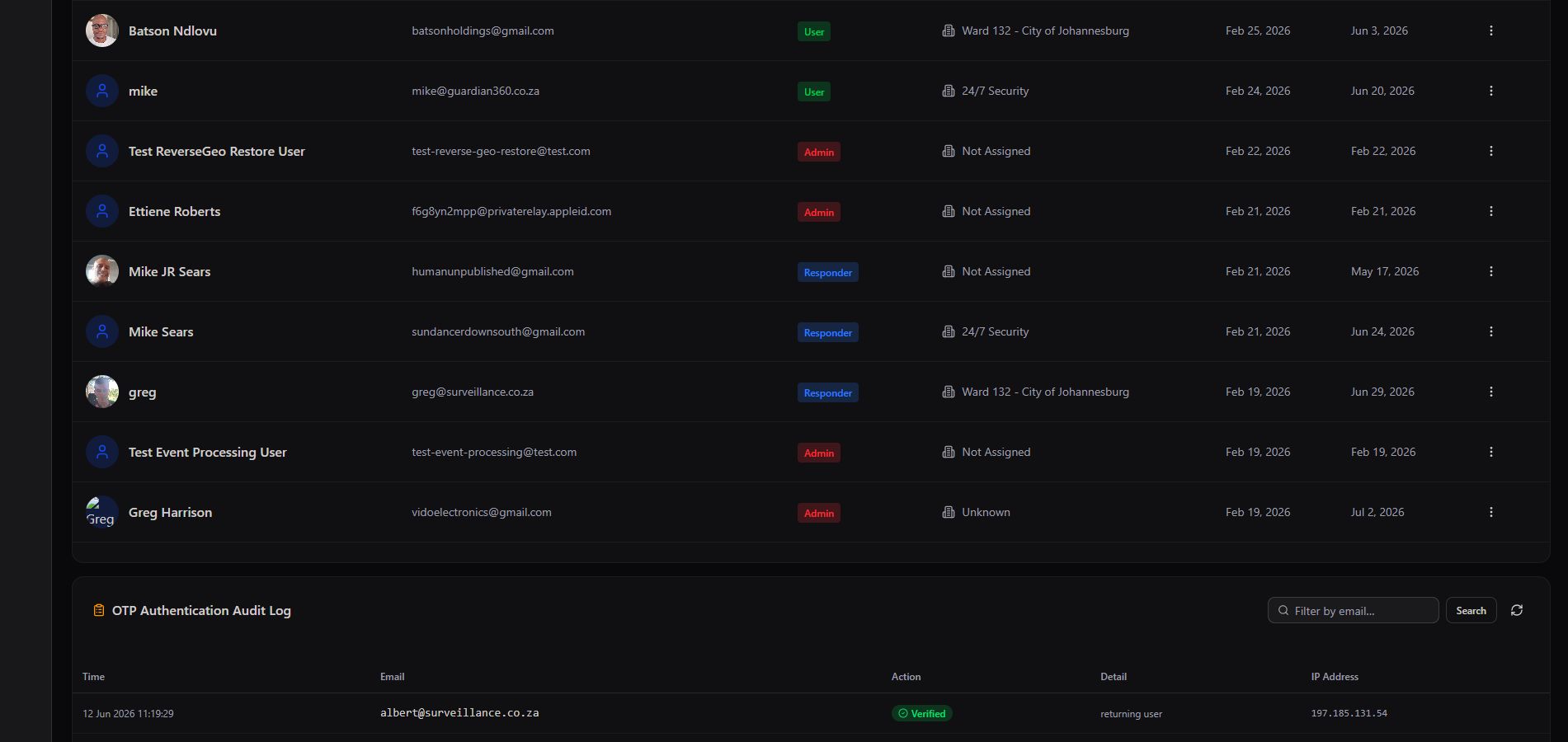
Beneath the user table, the platform keeps a running security log of every one-time-password authentication event — who requested it, from which email, what the outcome was, and the IP address it came from. This is your first stop for investigating a suspicious login or a locked-out account.
OTP Authentication Audit Log
OTP Authentication Audit Log → every authentication attempt, filterable by email, with action, detail, and IP address

Security, not just a roster. Because the audit log sits directly beneath the user table, an admin investigating unusual account activity never has to jump to a separate security dashboard — identity and authentication history live side by side.

Module 02

Communities

Define the geographic areas you serve, draw their boundaries, and track coverage at a glance.

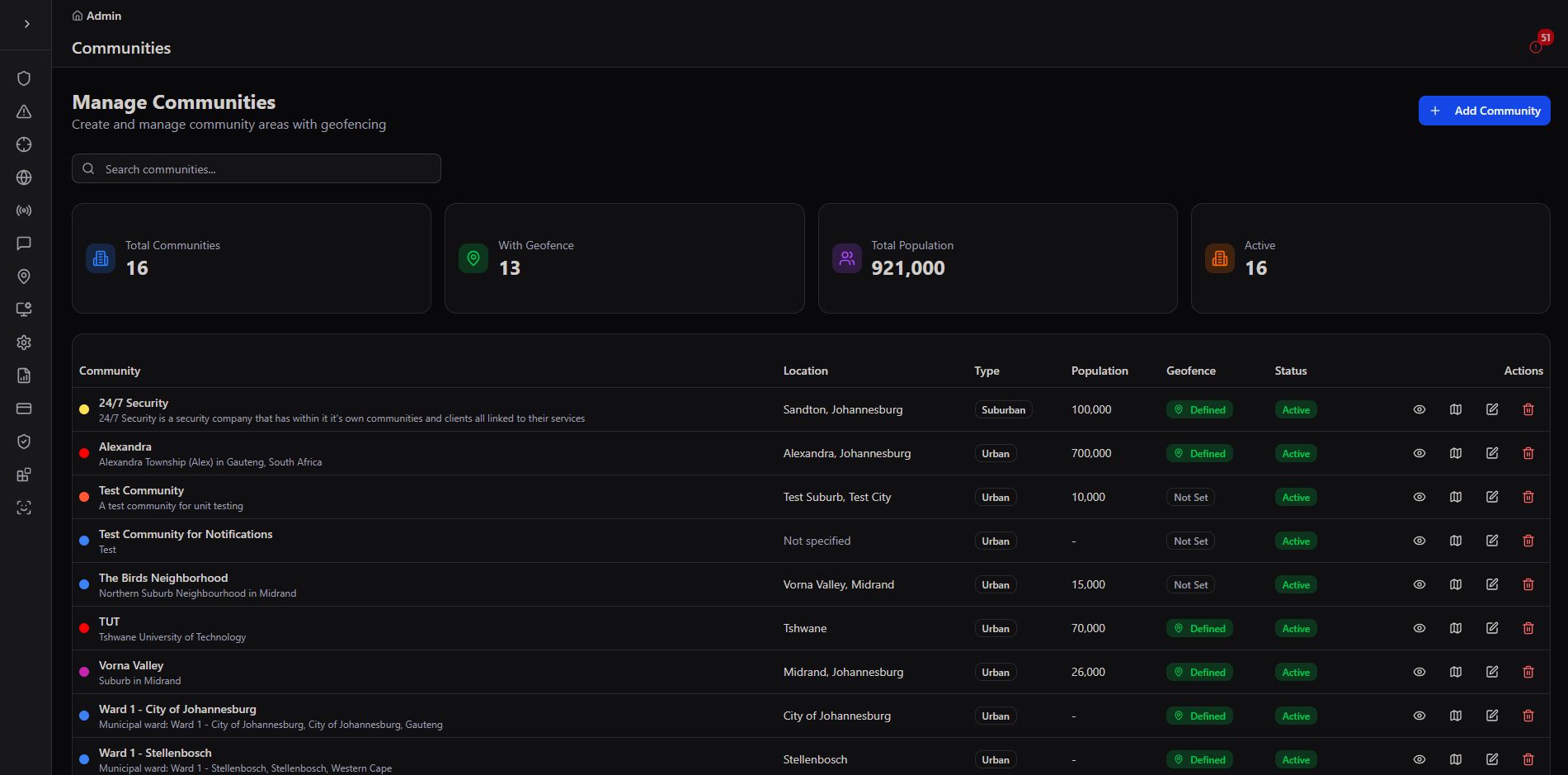
A Community is any geographic area with shared membership — a suburb, a ward, a business park, a gated estate. Communities carry a geofence boundary, a population estimate, and a live status, and they're the backbone that Users, News & Updates, and event notifications all key off.
Manage Communities table
Manage Communities → 16 communities, 13 with a defined geofence, covering a combined population of 921,000
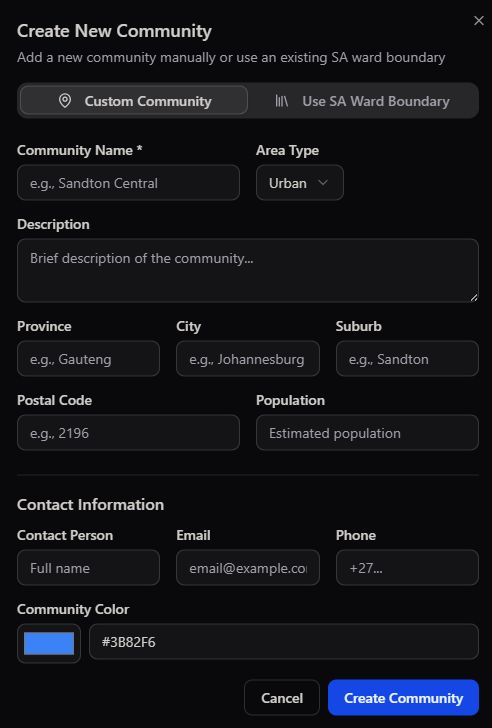
Create New Community modal
Create New Community → manually, or generate boundaries automatically from an existing SA ward
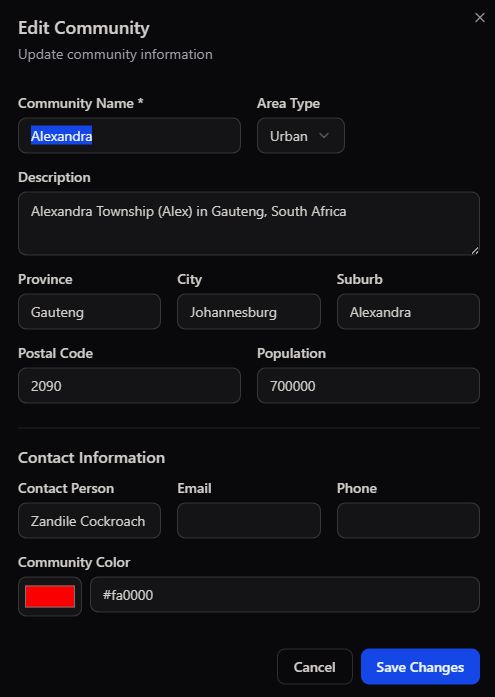
Edit Community modal
Edit Community → update name, area type, description, contact details, and the community's map colour
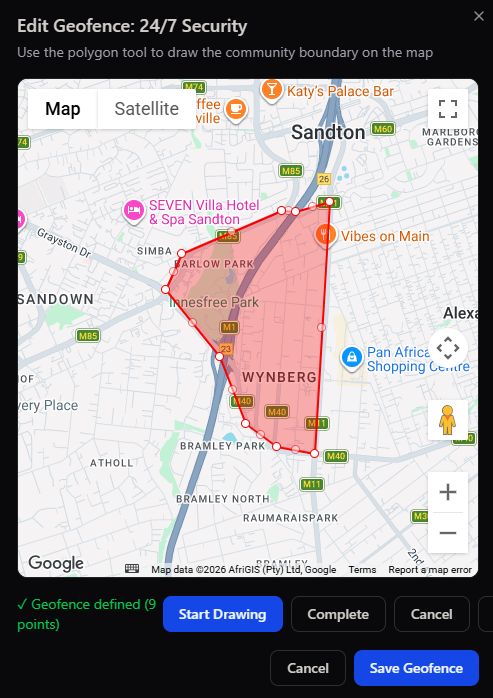
Edit Geofence modal
Edit Geofence → draw or redraw the community's boundary directly on the map with the polygon tool
🗺️
Geofence boundaries
Draw a custom polygon boundary on the map, or use an existing South African ward boundary as a shortcut for standard municipal areas.
🏷️
Area type & colour
Classify a community as Urban, Suburban, or Rural, and assign it a distinct colour used consistently across maps and reports.
👥
Population & contact
Record an estimated population and a named contact person, email, and phone — the go-to person for that community.
📊
Coverage dashboard
At a glance: total communities, how many have a defined geofence, combined population, and how many are active.

Boundaries drive everything downstream. Once a community's geofence is set, it automatically scopes which users see which News & Updates posts, which responders patrol which area, and which events are attributed to which community in reporting.

Module 03

Fixed Targets

Register every business, home, or government building you monitor — with its own geofence, risk level, and contacts.

A Fixed Target is any stationary site under monitoring — a private residence, a retail premises, a government building, a substation. Each one carries its own risk rating, geofence, operating hours, and assigned users, so that the moment an alarm fires at that address, the operator already has full context.
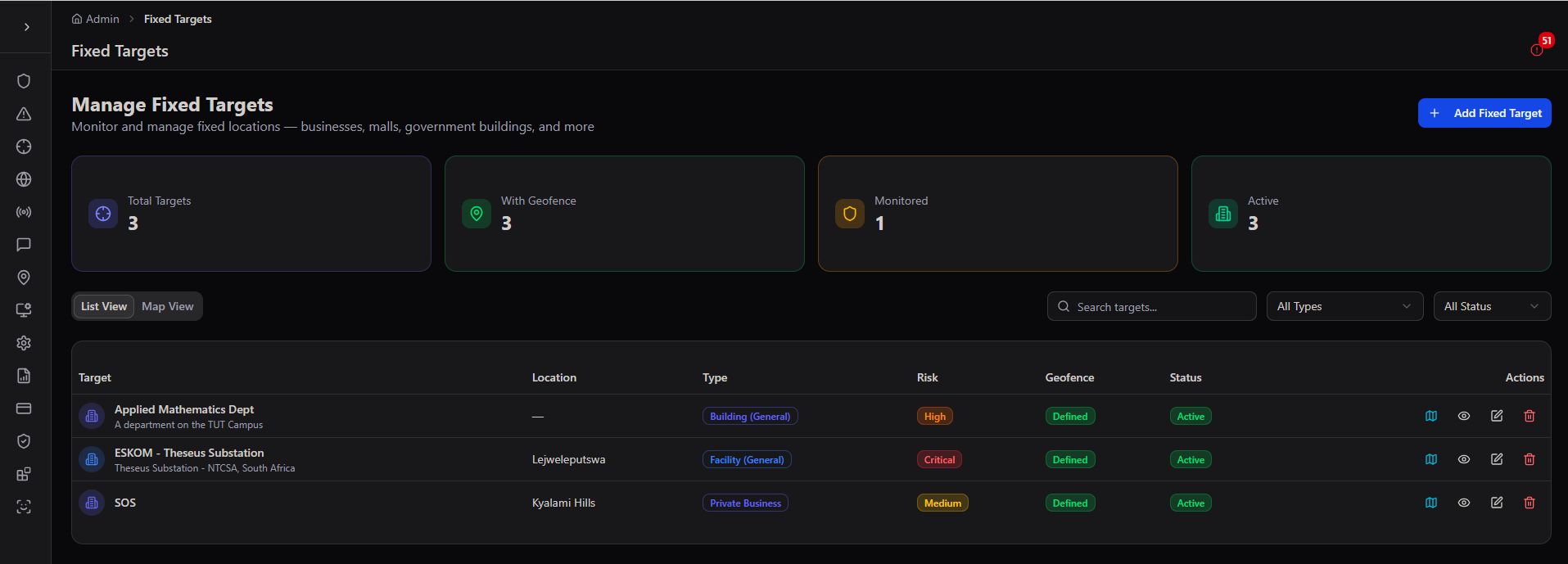
Manage Fixed Targets table
Manage Fixed Targets → every registered site with its type, risk level, geofence, and status; 3 targets, all active

Adding a Fixed Target

The Add Fixed Target form captures the essentials up front — name, code, description, target type, risk level, priority, and assigned community — alongside a live map where you drop the site pin and draw its geofence boundary directly.
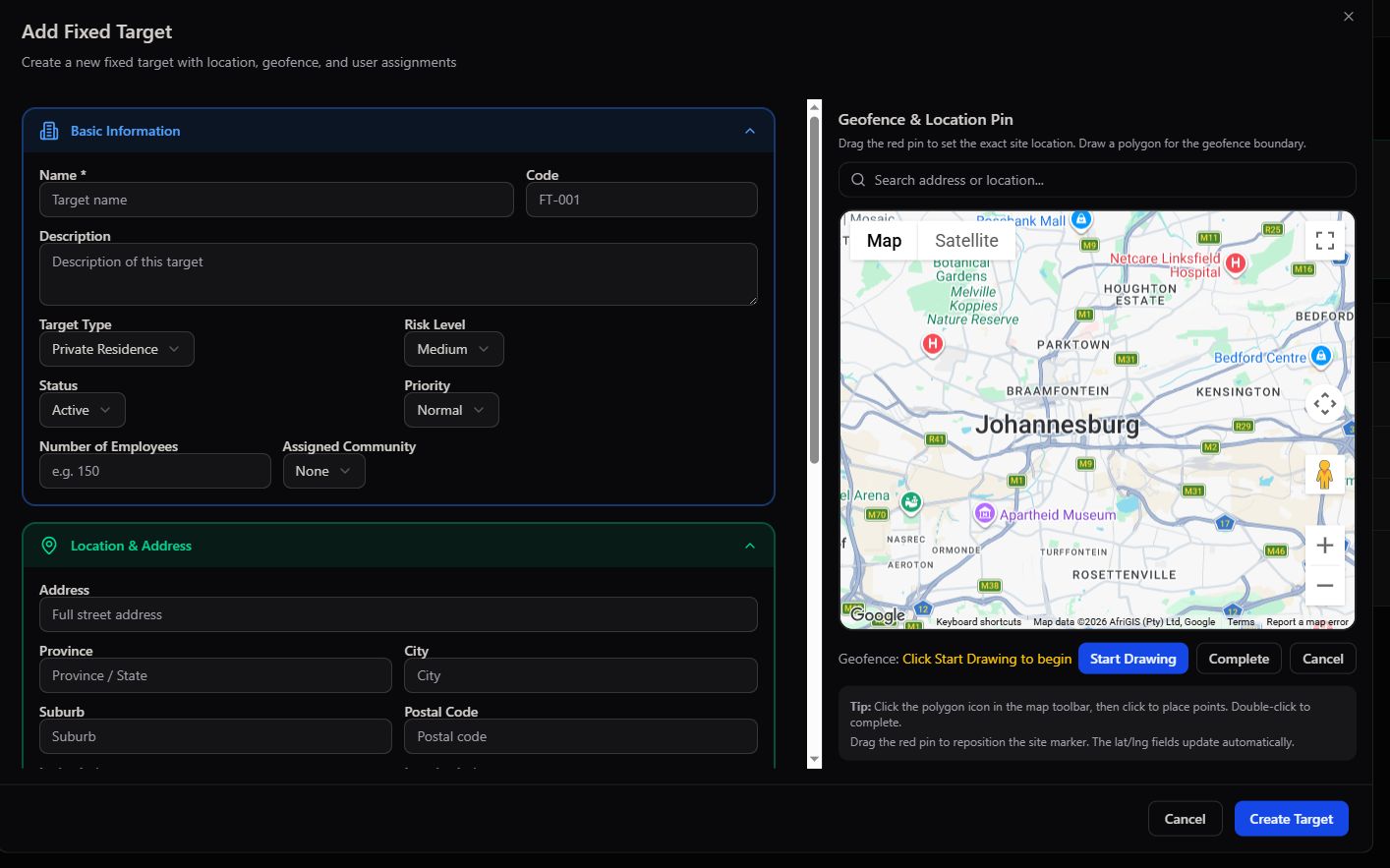
Add Fixed Target form with basic information and geofence map
Add Fixed Target → Basic Information alongside the Geofence & Location Pin map, with polygon drawing tools
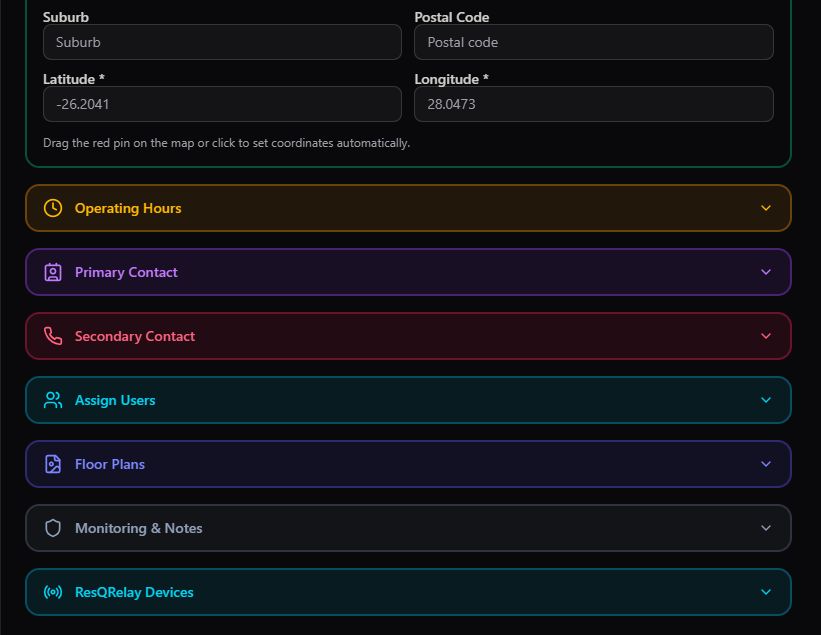
Add Fixed Target form location and address fields
Add Fixed Target (continued) → full address fields, with suburb and postal code auto-filled from the map pin
🏷️
Target type & risk level
Classify each site — Private Residence, Retail Store, Facility Manager Remote, and more — and assign a risk level of Low, Medium, or High.
📍
Geofence & location pin
Search an address or drag the pin to set the exact coordinates, then draw a polygon geofence directly on the map to define the monitored boundary.
🏘️
Community linkage
Assign the target to a Community so it inherits the right notification and patrol scoping, or leave it standalone for an independent site.
📇
Full address capture
Street address, city, province, suburb, and postal code — captured once and reused across dispatch, reporting, and contact forwarding.

Three active targets shown, endlessly extensible. The sample deployment above tracks an applied mathematics department, a finance substation, and an SOS-linked private residence — demonstrating that Fixed Targets spans corporate, industrial, and residential monitoring within a single view.

Module 04

Site Maps & Floor Plans

From satellite view down to an individual room — every Fixed Target's physical layout, mapped and device-ready.

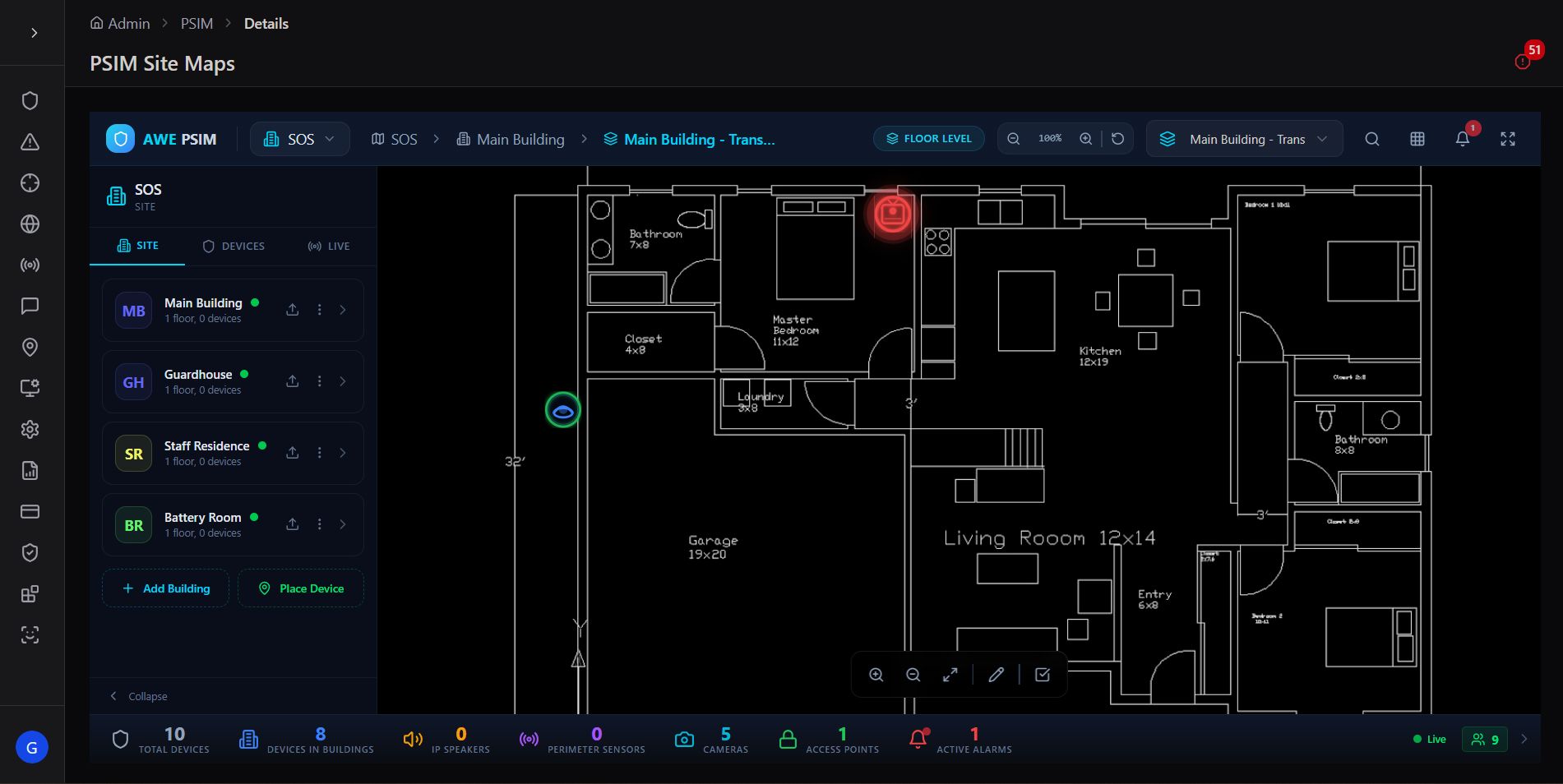
PSIM Site Maps takes a Fixed Target beyond a single address pin and turns it into a fully modelled site — buildings, floor plans, and even 3D interiors — with every connected device placed exactly where it physically sits. This is where an operator goes from "an alarm fired at this address" to "an alarm fired in this specific room."
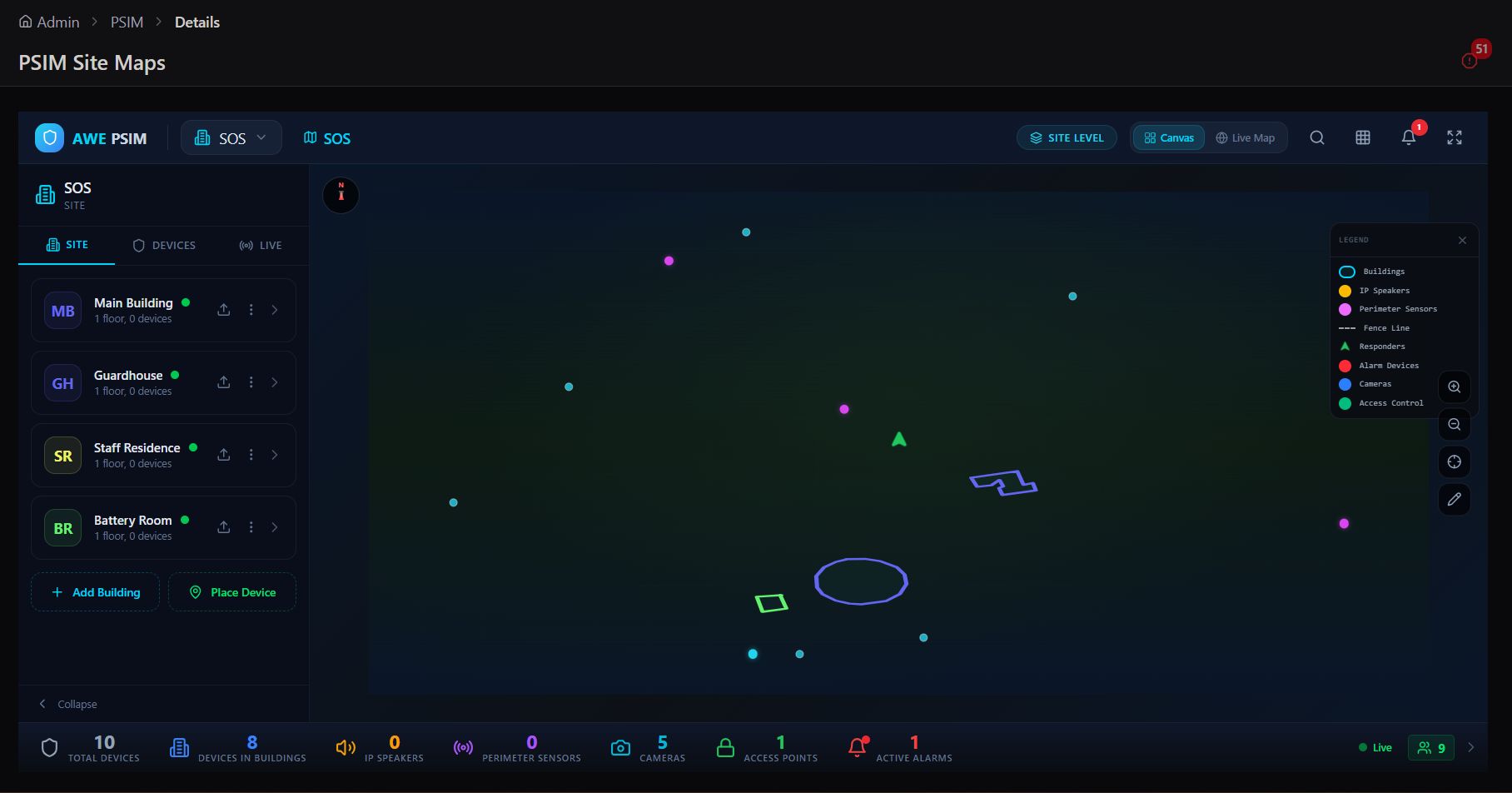
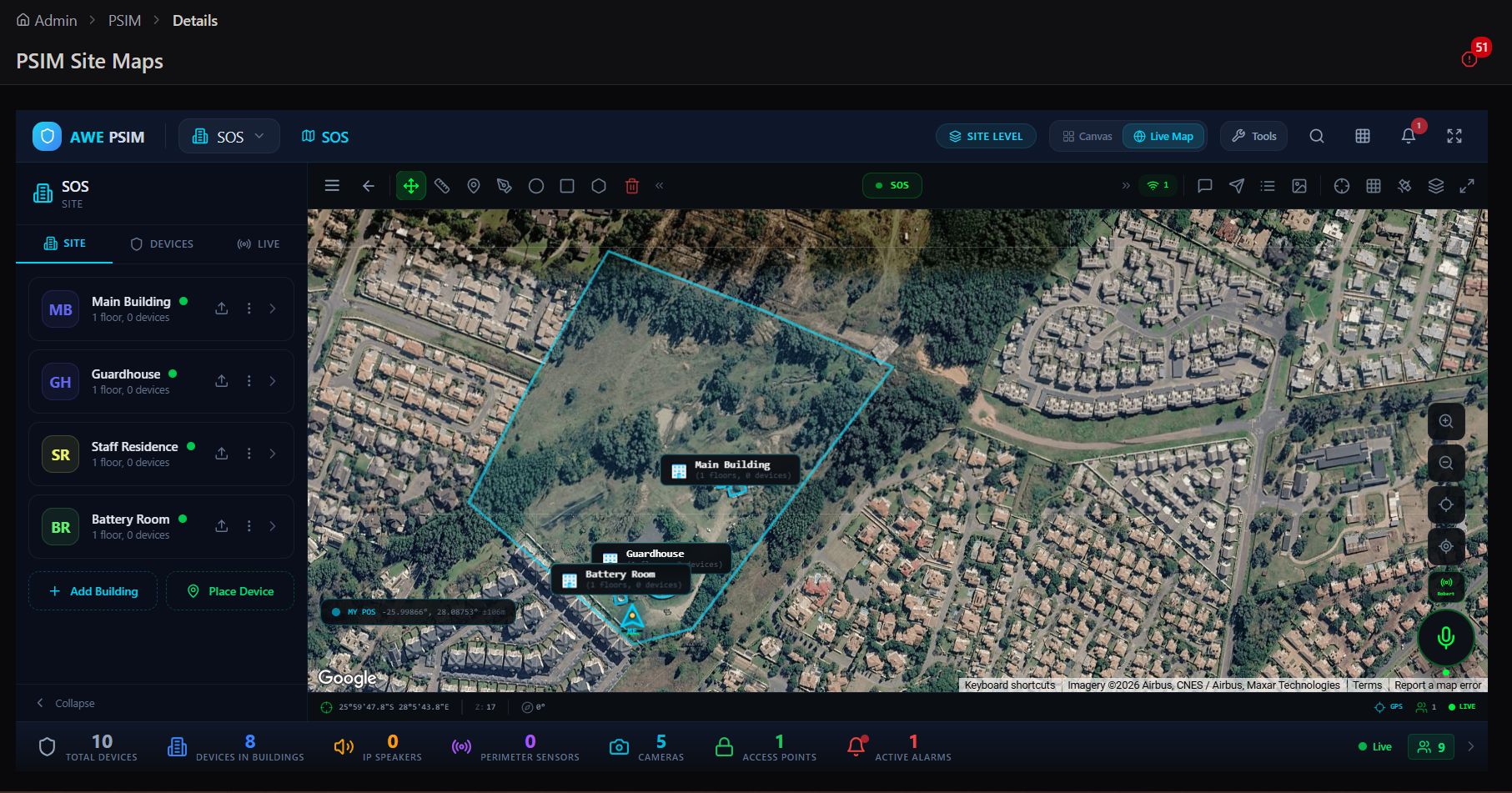
PSIM Site Maps site-level view
Site level → all buildings on the property (Main Building, Guardhouse, Staff Residence, Battery Room) with device counts and a live tactical overlay
Satellite view of the site
Satellite view → the property's real-world footprint, with each building pinned at its true location
Building floor plan view
Floor plan → drill into a building to see its rooms, with devices placed at their exact in-room position
Radial device quick-action menu on floor plan
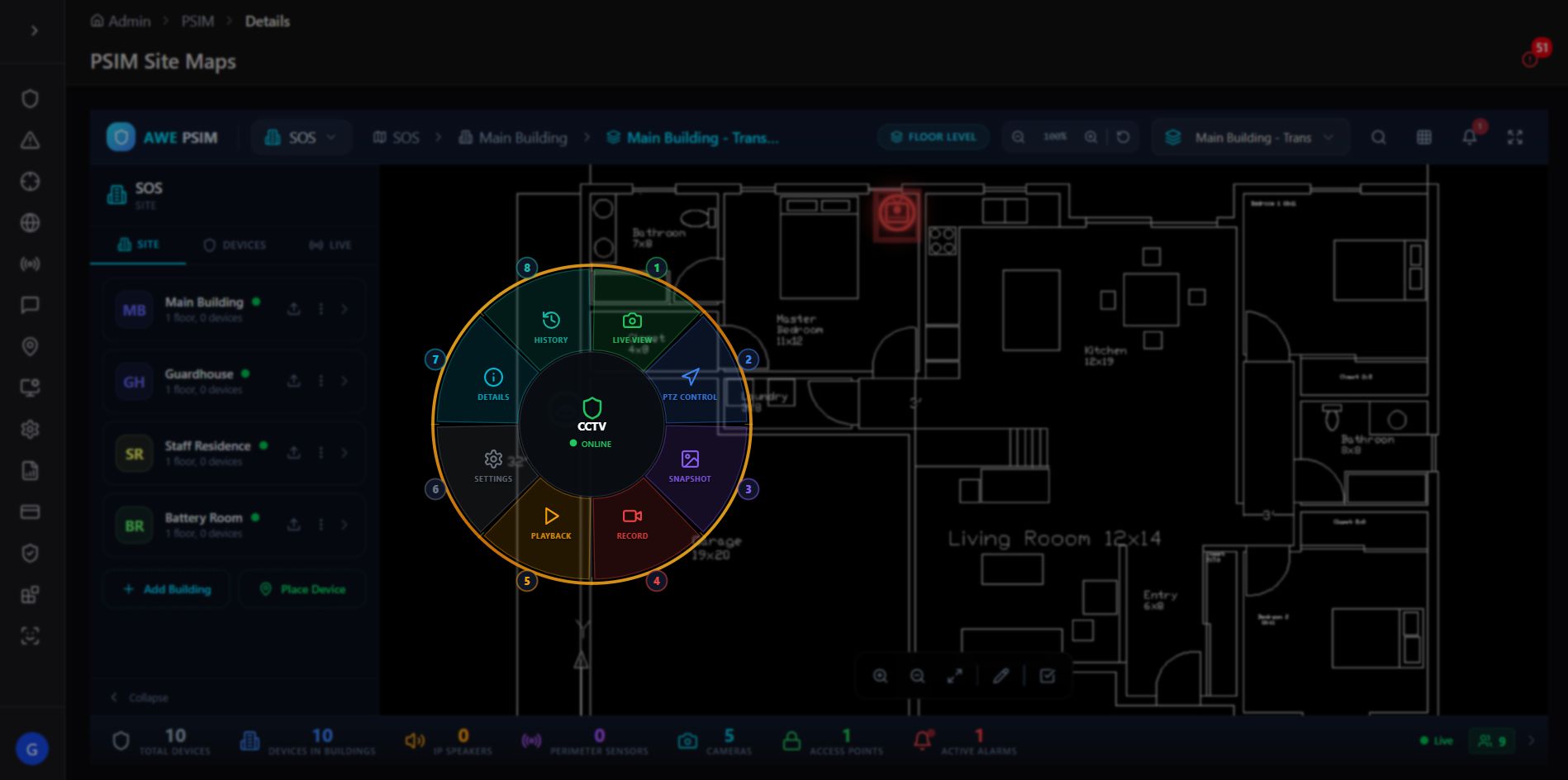
Quick actions → tap a device on the floor plan for a radial menu of live camera, lock, alarm, and history controls
3D rendered floor plan
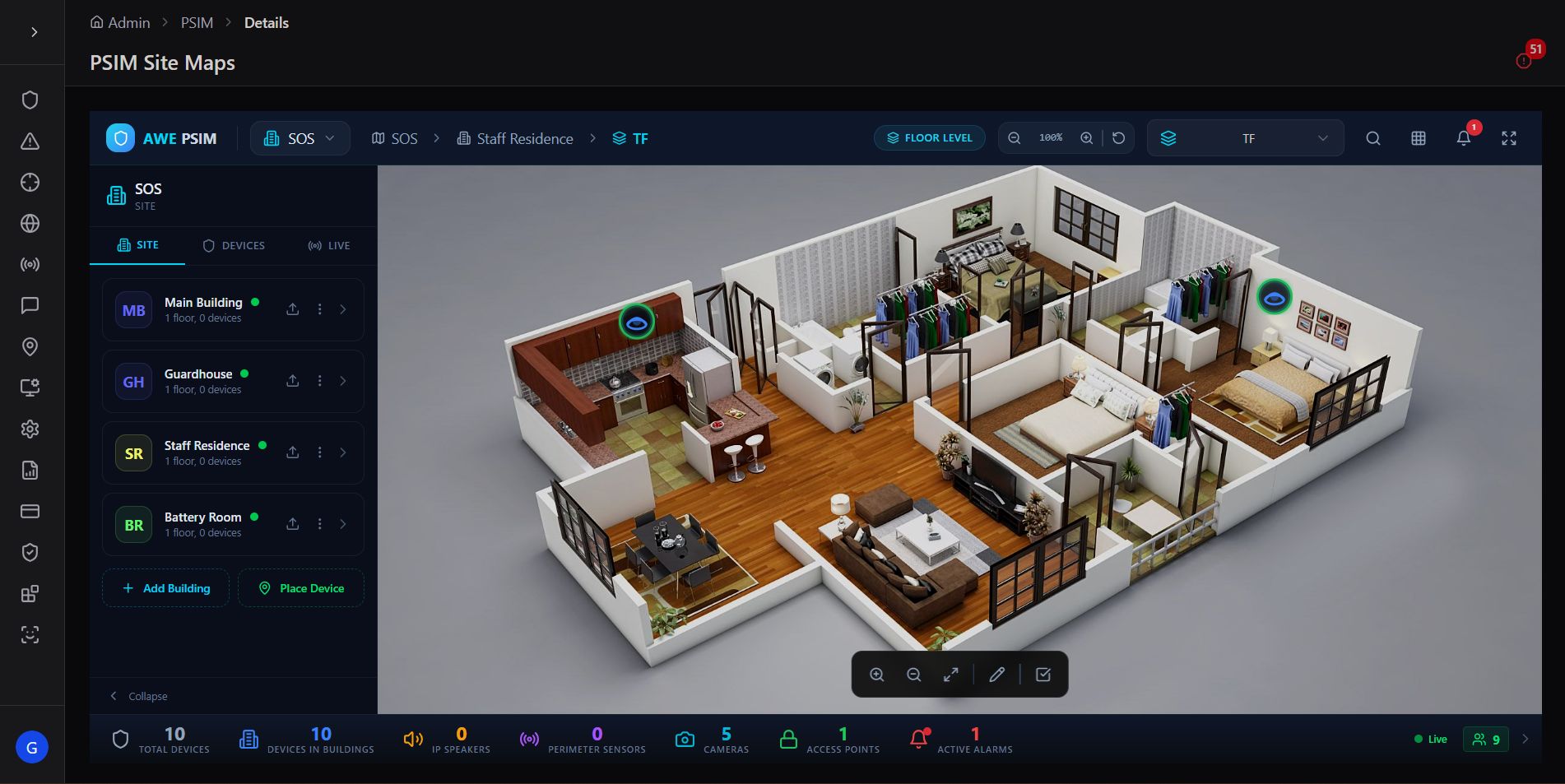
3D floor view → the same building rendered as a full 3D interior, for the clearest possible spatial context
Live device feed on the site map
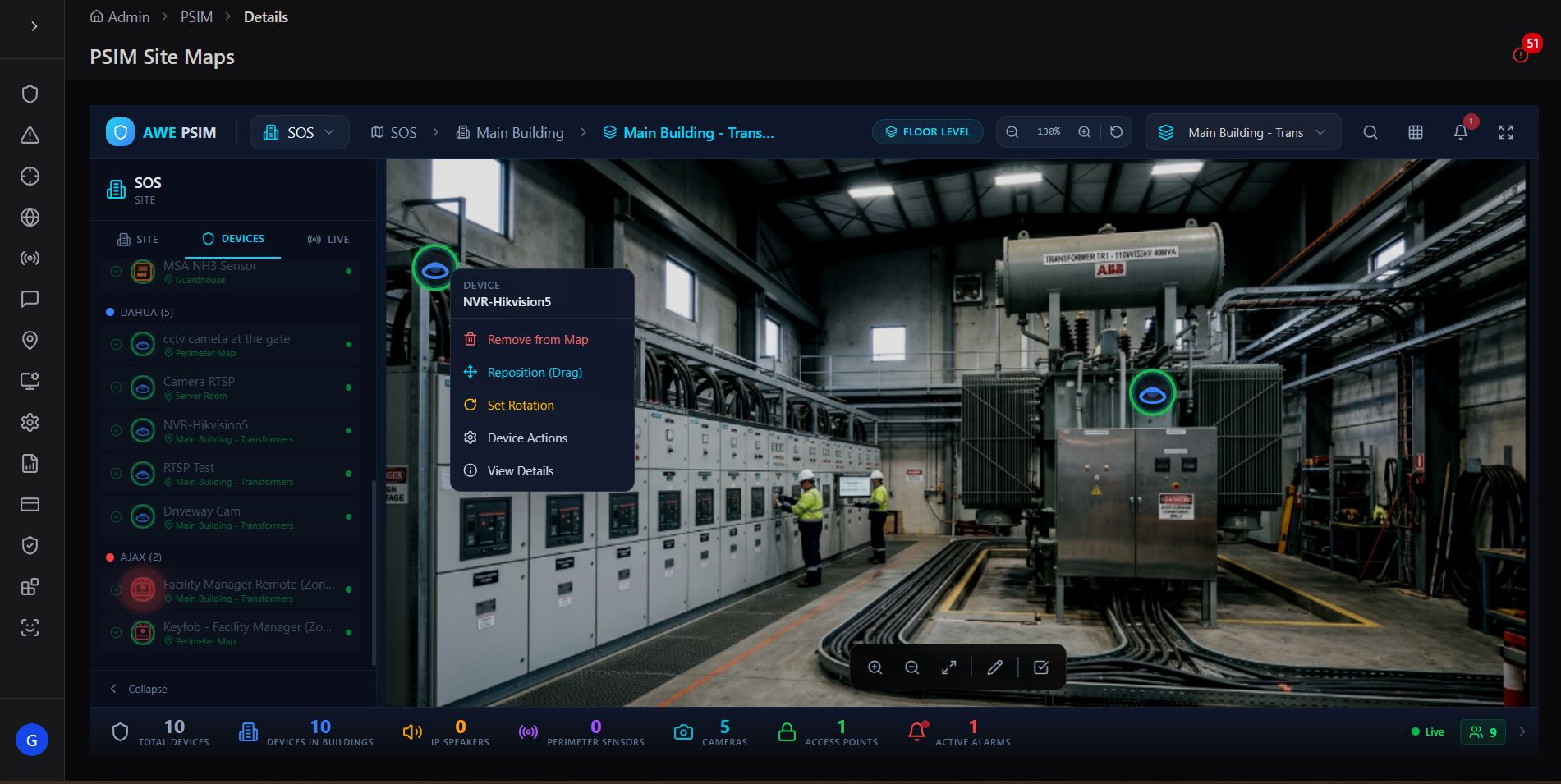
Live device feed → select a device to view its live camera feed directly from the floor plan, with quick actions alongside
🏢
Multi-building sites
Add as many buildings as a site has — Main Building, Guardhouse, Staff Residence, Battery Room — each with its own device count and floor plans.
🗺️
Four view modes
Site Level, satellite Map View, 2D Floor Plan, and full 3D — switch between them depending on how much spatial detail the situation needs.
📡
Devices placed on the plan
Cameras, alarm sensors, and access control points are pinned to their literal physical location, not just listed in a table.
📊
Live site stats bar
Total devices, devices in building, IP speakers, perimeter sensors, cameras, access points, and active alarms — always visible along the bottom of the map.

From address to room in three clicks. An operator responding to an alarm at a monitored site can go from the site-level overview, into the specific building, down to the exact room and device — confirming the situation visually before a single responder is dispatched.

Module 05

Fixed Target Configuration

Operating hours, contacts, users, floor plans, and monitoring notes — every operational detail a site needs.

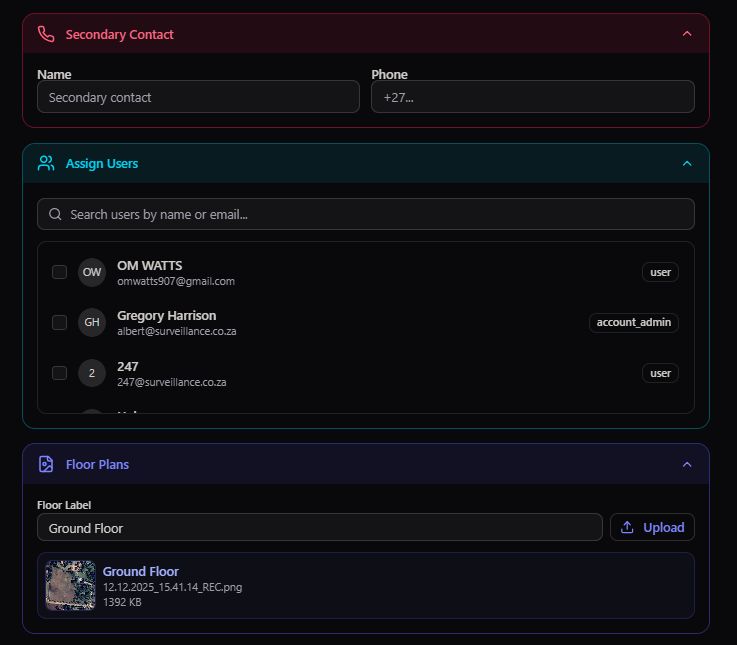
Beyond location, every Fixed Target carries a full operational profile. A structured set of accordion panels lets an admin define exactly when the site operates, who to contact under normal and emergency circumstances, which users are assigned to it, and any standing notes an operator should know before responding.
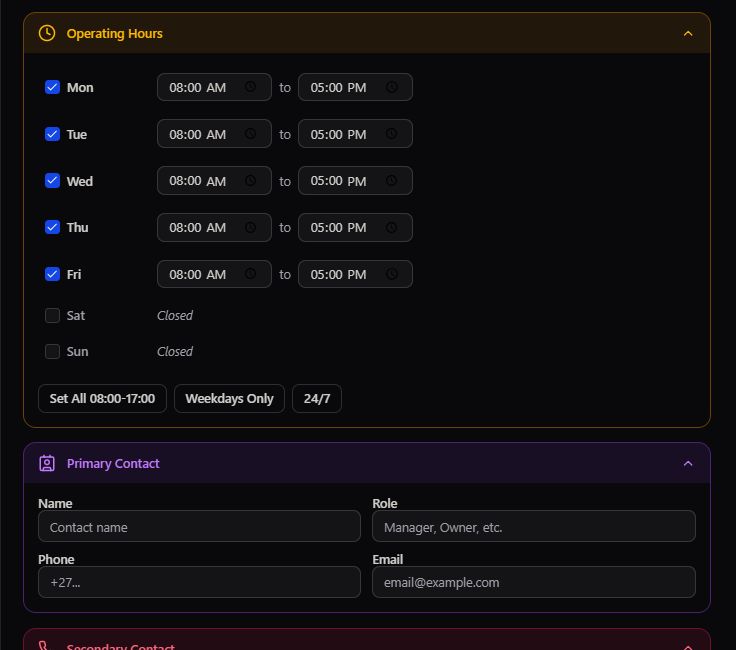
Operating Hours and Primary Contact panels
Operating Hours → per-day open/close times with quick presets (Set All, Weekdays Only, 24/7), alongside the Primary Contact panel
Secondary Contact and Assign Users panels
Secondary Contact, Assign Users, and Floor Plans → a backup contact, the users linked to this target, and uploaded floor plan images
Monitoring and Notes and ResQRelay Devices panels
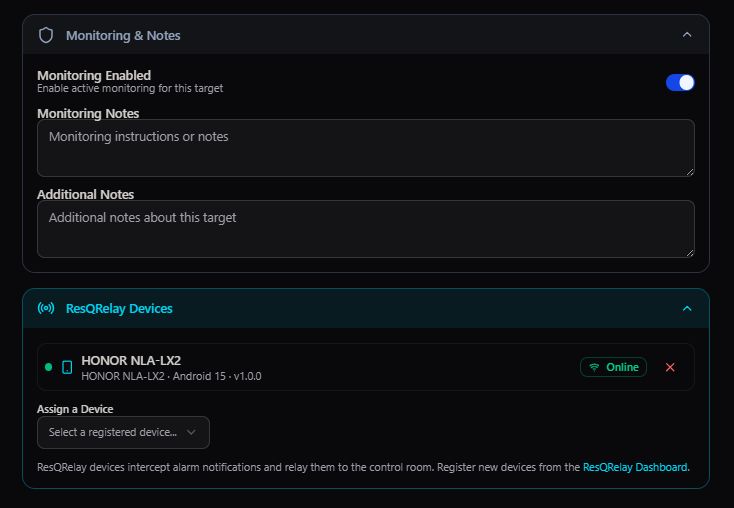
Monitoring & Notes and ResQRelay Devices → a monitoring toggle with free-text notes, and any hardware relay devices registered to the site

Editing an existing target

Every Fixed Target can be reopened for editing at any time — its full profile, geofence, and assigned community together in one form.
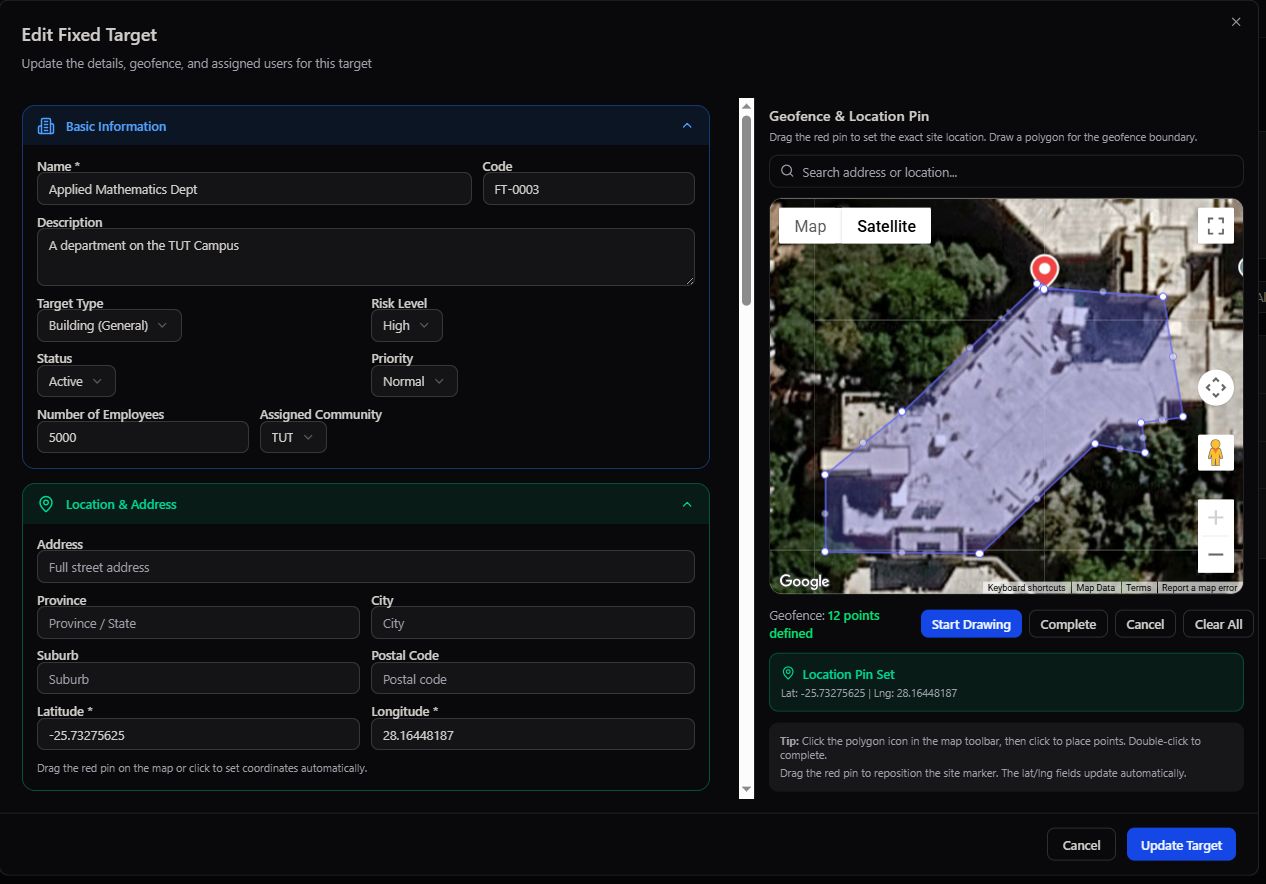
Edit Fixed Target modal with map
Edit Fixed Target → the same structured form and geofence map, pre-filled for updating an existing site

Row actions

From the Fixed Targets or Communities table, every row carries the same compact action set: view on map, preview, edit, or delete.
Row action icons
Row actions → map, preview, edit, delete
Row action icons, second instance
The same action set, consistent across every table in the Targets module
⏱️
Operating hours
Set open and close times per day of the week, with one-click presets for weekdays-only or full 24/7 operation.
📇
Primary & secondary contacts
Capture a main contact and a backup — name, role, phone, and email — so there's always someone reachable for this site.
👥
Assign users
Link specific registered users to this target by name or email, with an account admin permission flag where relevant.
📶
ResQRelay devices
Register hardware relay devices tied to the site, monitor their online status, and manage device pairing directly from the target's profile.

One profile, every operational answer. When an event fires at a Fixed Target, an operator can immediately check whether the site should be open right now, who to call, and whether there are standing notes about the location — all without leaving the target's configuration.

Module 06

Mobile Targets

Track vehicles and other moving assets with the same rigor Fixed Targets applies to buildings.

Not everything worth monitoring stands still. Mobile Targets extends the same registry concept to vehicles and dynamic assets — tracked via a GPS device rather than a fixed geofence, with live location updates as they move.
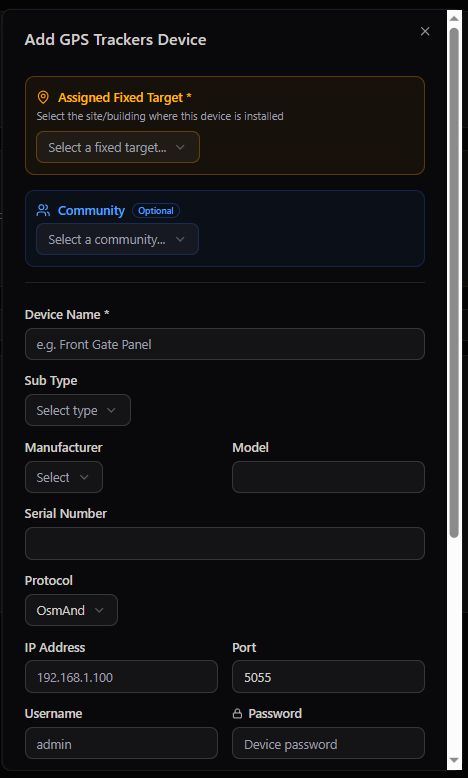
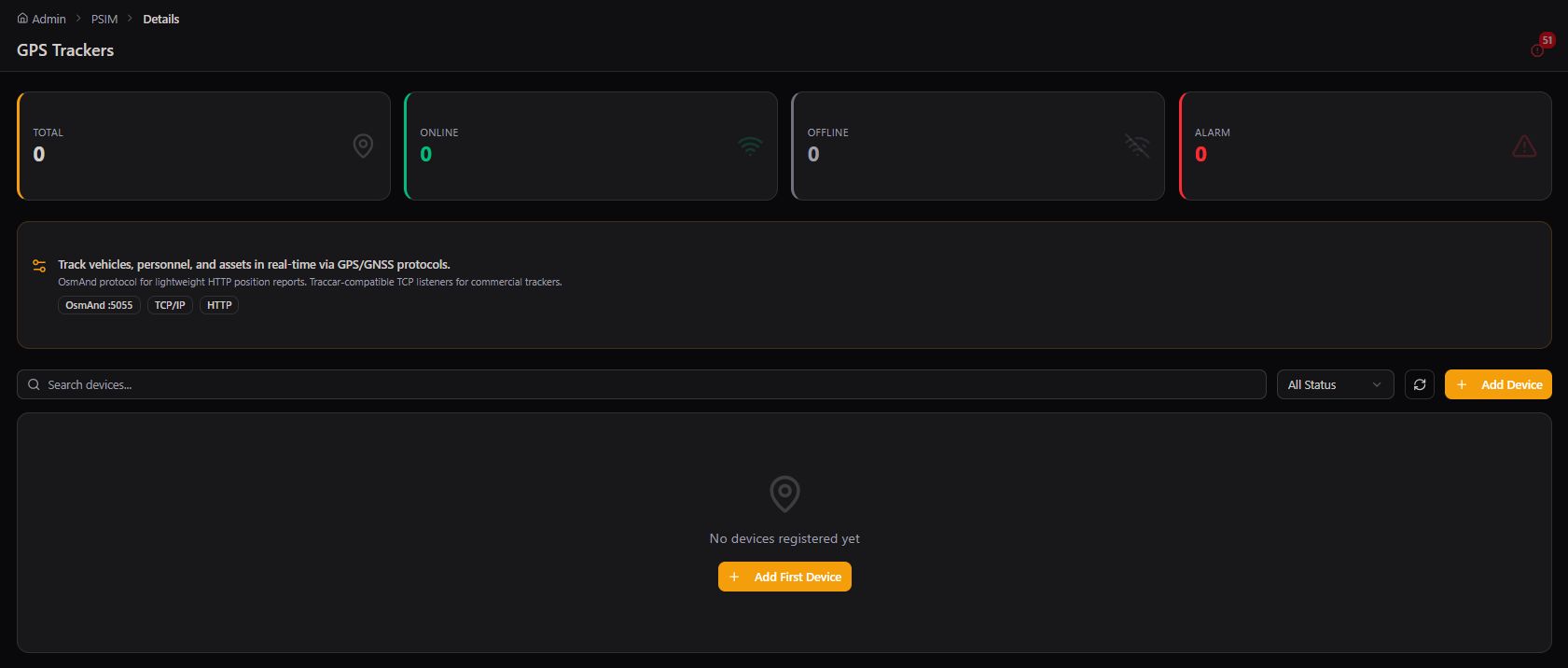
Add GPS Trackers Device modal
Add GPS Tracker Device → link a physical tracking device to a mobile target, with manufacturer, model, and connection details
Mobile Targets list with filters
Mobile Targets → the tracked asset list with type and status filters, alongside vehicle registration search
📡
GPS device pairing
Register a tracker's serial number, protocol, IP address, and login credentials to bring a physical device online against a mobile target.
🚗
Vehicle & asset profiles
Each mobile target carries its own identifying details and assigned community, just like a Fixed Target — but with a moving location instead of a static one.
🔎
Type & status filtering
Filter the tracked fleet by asset type and current status to quickly find the vehicle or asset you need.
📍
Live location updates
Once paired, a Mobile Target's position updates continuously — the same live-tracking backbone used for responders on patrol.
🚀 What gets tracked as a Mobile TargetDeployment spectrum
Security patrol vehicles Delivery fleet vehicles High-value cargo Mobile CCTV trailers Generator or equipment trailers VIP transport vehicles
Module 07

Messaging Center

Compose and send push notifications directly to any user or responder, scoped by target.

Where News & Updates broadcasts to a workforce, the Messaging Center is Targets' direct line to individual users and responders — compose a message, choose its type and priority, attach a file if needed, and select exactly who receives it.
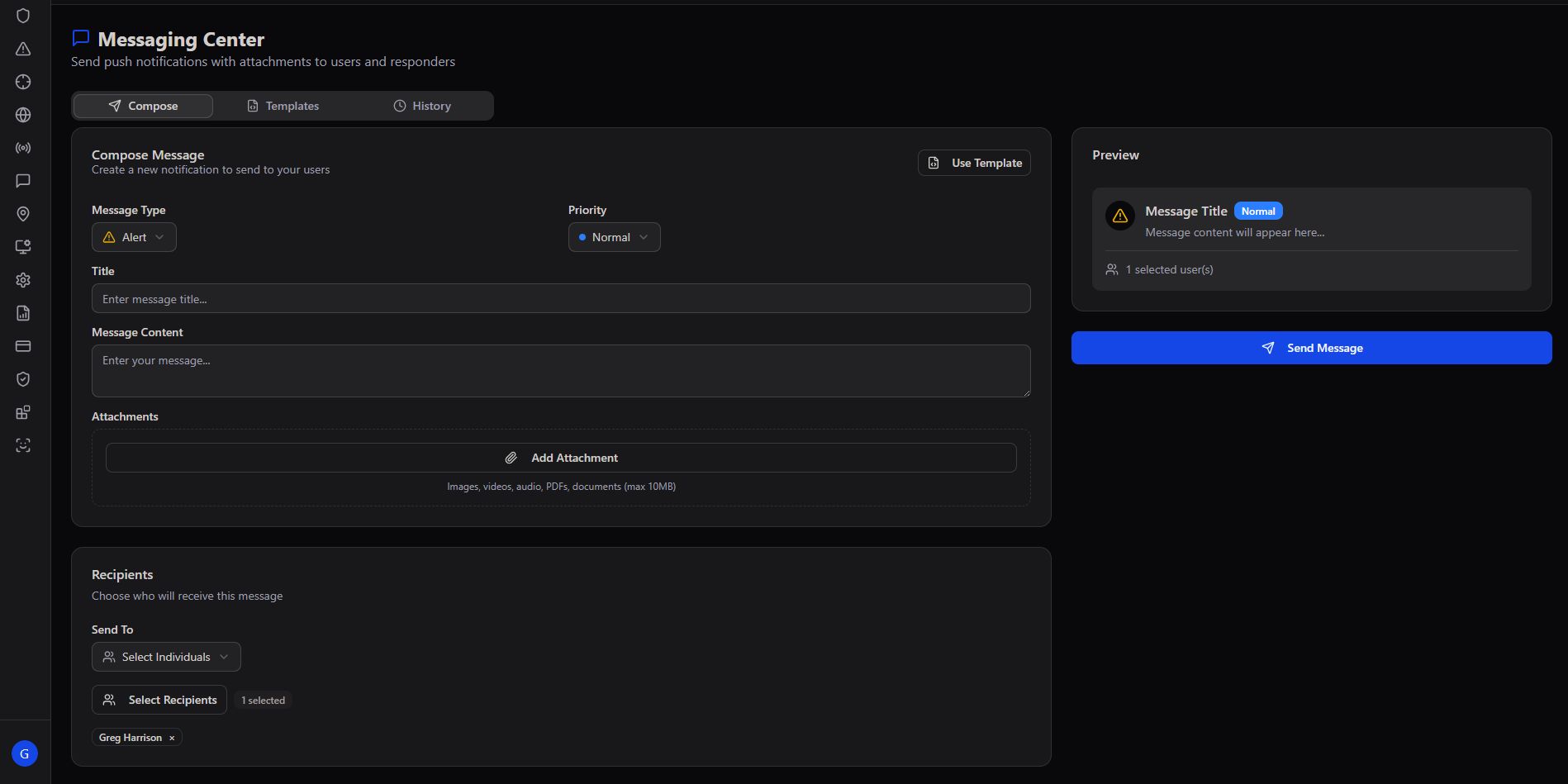
Messaging Center compose panel
Messaging Center → Compose a message with type and priority, attach files, pick recipients, and preview it before sending
✍️
Message type & priority
Classify each message — Alert or otherwise — and set its priority (Normal and above) so recipients understand urgency at a glance.
📎
Attachments
Attach images, videos, PDFs, or documents directly to a message — the same multimedia support used across the platform's communication tools.
🎯
Recipient selection
Select individual recipients by name rather than broadcasting to an entire community — precise, targeted communication.
👁️
Live preview
See exactly how the message will appear to the recipient before hitting send, including title, badge, and selected-recipient count.

Direct, not broadcast. Messaging Center exists for the moments a bulletin isn't the right tool — a specific question for a specific responder, a targeted follow-up with a specific citizen, a one-to-one confirmation that doesn't need to reach anyone else.

Complete platform. Every target, accounted for.

Targets — across Users, Communities, Fixed Targets, Site Maps, and Mobile Targets — is the registry that makes every other module meaningful. The underlying question it answers is simple: who are we serving, where do they live and work, and what physical assets need watching? Event Processing and Responder Management both depend on this data being accurate, current, and geographically precise.